> ## Documentation Index
> Fetch the complete documentation index at: https://docs.civic.com/llms.txt
> Use this file to discover all available pages before exploring further.
# Claude Code Setup
> Connect Anthropic's Claude Code CLI to Civic
Claude Code supports direct HTTP Streaming connections to Civic — no local bridge required. Follow the steps below to connect in a few minutes. Hub Bridge is also available as a fallback if needed.
## Overview
Claude Code (Anthropic's command-line coding assistant) uses Model Context Protocol (MCP) to talk to external tools. Claude Code supports **direct HTTP connections** to Civic — no local bridge required.
## Prerequisites
* Anthropic Claude CLI (`claude`) installed and authenticated
* A Civic account — [create one free at app.civic.com](https://app.civic.com)
**How authentication works**
Civic supports two methods depending on how your client connects:
| Client type | Method | How it works |
| ---------------------------------------------------------------------------------- | --------------- | -------------------------------------------------------------------------------------------------------------------------------------------------------- |
| Interactive clients (Claude Desktop, Cursor, VS Code, Gemini CLI, Goose, Windsurf) | **OAuth** | When you connect, your client opens a browser window to app.civic.com. Sign in once — no manual token needed. |
| Automated agents (LangChain, custom scripts, OpenAI SDK, Anthropic SDK) | **Civic Token** | Generate a bearer token at [app.civic.com → Install → MCP URL](https://app.civic.com/web/install/mcp-url). Pass it as an `Authorization: Bearer` header. |
See [Get Your Credentials](/civic/quickstart/credentials) for full details.
## Quick Setup
Claude Code supports two connection methods. Choose the one that works best for you:
### Direct Connection via HTTP
Claude Code now supports direct HTTP connections to Civic without needing a local bridge.
Run this command to add Civic via HTTP:
```bash theme={null}
claude mcp add --transport http civic https://app.civic.com/hub/mcp
```
This configures Claude Code to connect directly to Civic over HTTP.
Start the Claude CLI session:
```bash theme={null}
claude
```
Tip: add the `--debug` flag if you want to watch MCP logs while connecting.
Inside the Claude session, run the MCP menu command:
```text theme={null}
/mcp
```
Select the `civic` server. A browser window opens to app.civic.com — sign in with your Civic account. Once complete, Claude confirms the server is `connected` and ready to use.
### Local Bridge Connection
**What is Hub Bridge?** Hub Bridge (`@civic/hub-bridge`) is a lightweight local proxy that runs on your machine via `npx` and bridges stdio-only MCP clients to Civic's remote HTTP endpoint. Use it when your client doesn't support remote HTTP MCP connections natively. If your client supports HTTP/Streamable HTTP MCP — use that instead (it's simpler and has no Node.js dependency).
[Full Hub Bridge setup guide →](/civic/quickstart/hub-bridge)
Use this method if you run into issues with the HTTP transport path above.
Run this command to add the Civic Hub Bridge MCP server:
```bash theme={null}
claude mcp add civic "npx @civic/hub-bridge"
```
This installs the bridge (if needed) and stores the connection in your Claude MCP config.
Start the Claude CLI session:
```bash theme={null}
claude
```
Tip: add the `--debug` flag if you want to watch MCP logs while connecting.
Inside the Claude session, run the MCP menu command:
```text theme={null}
/mcp
```
Select the `civic` server and follow the browser sign-in flow to authorize Civic. Once the login completes, Claude confirms that the server is available for tool execution.
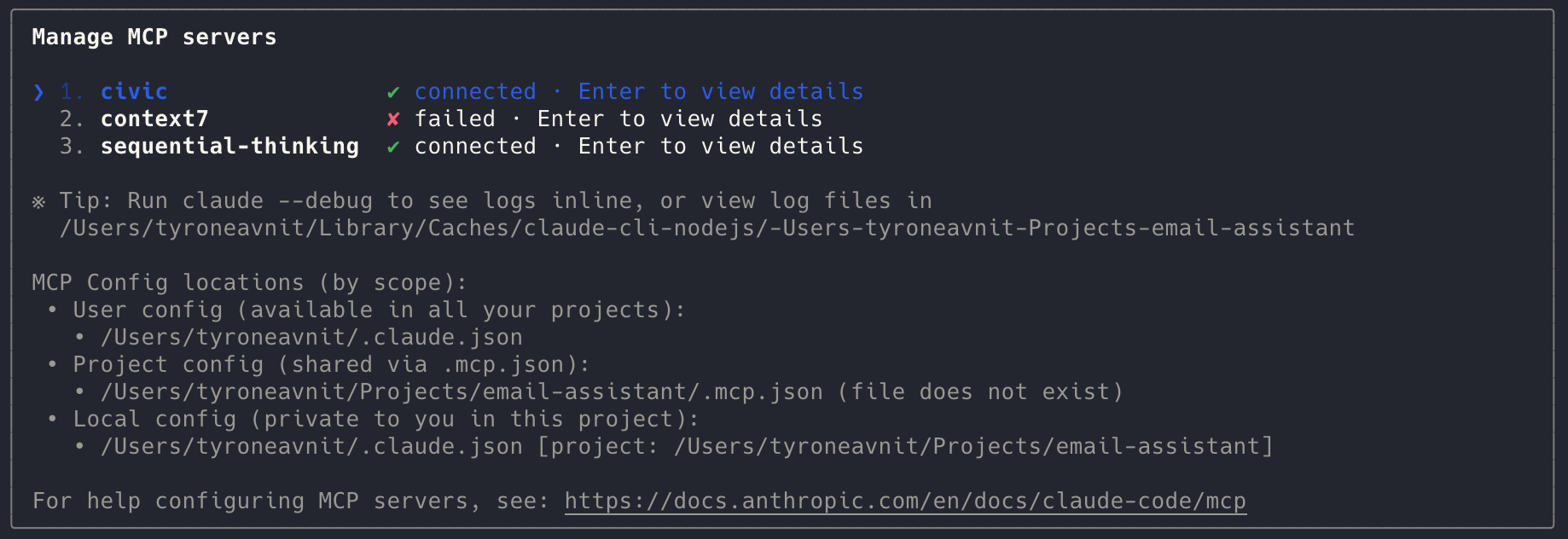 ## Verify the Connection
* In Claude, run `/mcp` again to check that `civic` shows as `connected`
* Test a Civic command (for example, request a tool list) to confirm the session is authorized
## Troubleshooting
* If the connection shows `failed`, re-run `claude --debug` to view detailed logs in your terminal
* Ensure you have an active Civic session in your default browser; the MCP flow opens a new window for login
* Delete and re-add the server with `claude mcp remove civic` followed by the setup command if you need to refresh credentials
## Resources
Full Hub Bridge configuration details
MCP support matrix for Claude Code
Common Claude Code connection fixes
Deploy Civic in autonomous agents and automation platforms
## Verify the Connection
* In Claude, run `/mcp` again to check that `civic` shows as `connected`
* Test a Civic command (for example, request a tool list) to confirm the session is authorized
## Troubleshooting
* If the connection shows `failed`, re-run `claude --debug` to view detailed logs in your terminal
* Ensure you have an active Civic session in your default browser; the MCP flow opens a new window for login
* Delete and re-add the server with `claude mcp remove civic` followed by the setup command if you need to refresh credentials
## Resources
Full Hub Bridge configuration details
MCP support matrix for Claude Code
Common Claude Code connection fixes
Deploy Civic in autonomous agents and automation platforms