> ## Documentation Index
> Fetch the complete documentation index at: https://docs.civic.com/llms.txt
> Use this file to discover all available pages before exploring further.
# Claude Desktop Setup
> Connect Claude Desktop to Civic in 5 minutes
This guide covers Claude Desktop setup. For other AI clients, see our [client compatibility guide](/civic/reference/client-compatibility).
## Prerequisites
Before you begin, make sure you have:
Download and install Claude Desktop (Pro or Team plan required for MCP connectors)
Create a free account on app.civic.com
## Step 1: Set Up Your Civic Account
If you haven't already, create your account and select your tools at app.civic.com:
Go to [app.civic.com](https://app.civic.com) and sign in with Google, GitHub, or email.
During onboarding, choose which services you want your AI to access — GitHub, Slack, Google Workspace, Dropbox, and more. This creates your default toolkit.
Your connection URL is the same for every Civic account:
```
https://app.civic.com/hub/mcp
```
The URL is not personalized — what makes it *yours* is authentication. When you connect your client and complete the OAuth flow, Civic links that session to your account and toolkit.
The MCP URL (`https://app.civic.com/hub/mcp`) is the same for every Civic user. What makes it yours is authentication — when you click **Connect** in Claude Desktop, a browser window opens to app.civic.com and links that session to your account and toolkit.
## Step 2: Add MCP Server in Claude Desktop
1. In Claude Desktop, click on **Settings** (usually in the bottom left or profile menu)
2. Navigate to **Connectors**
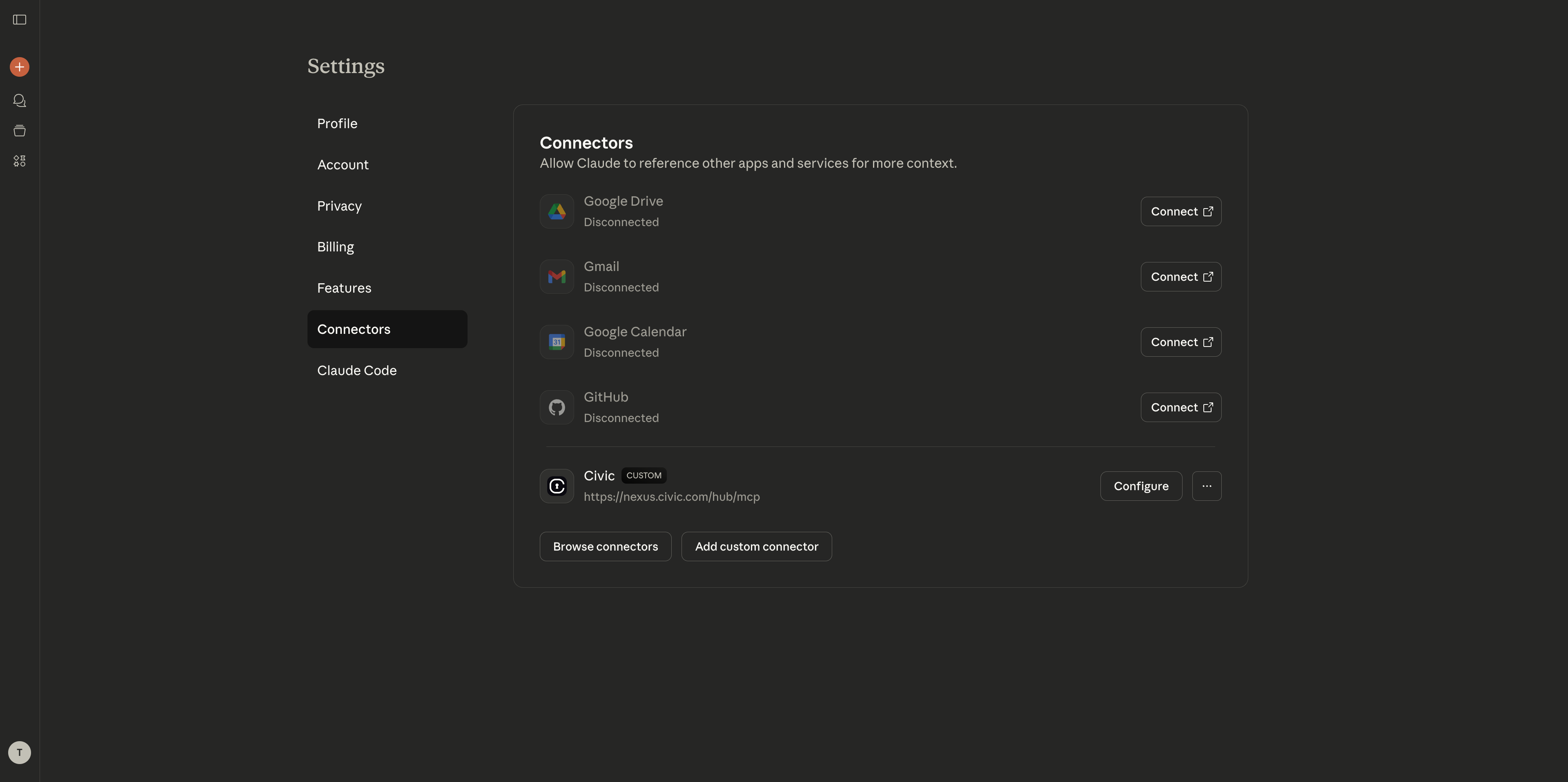 1. Click **"Add Custom Connector"**
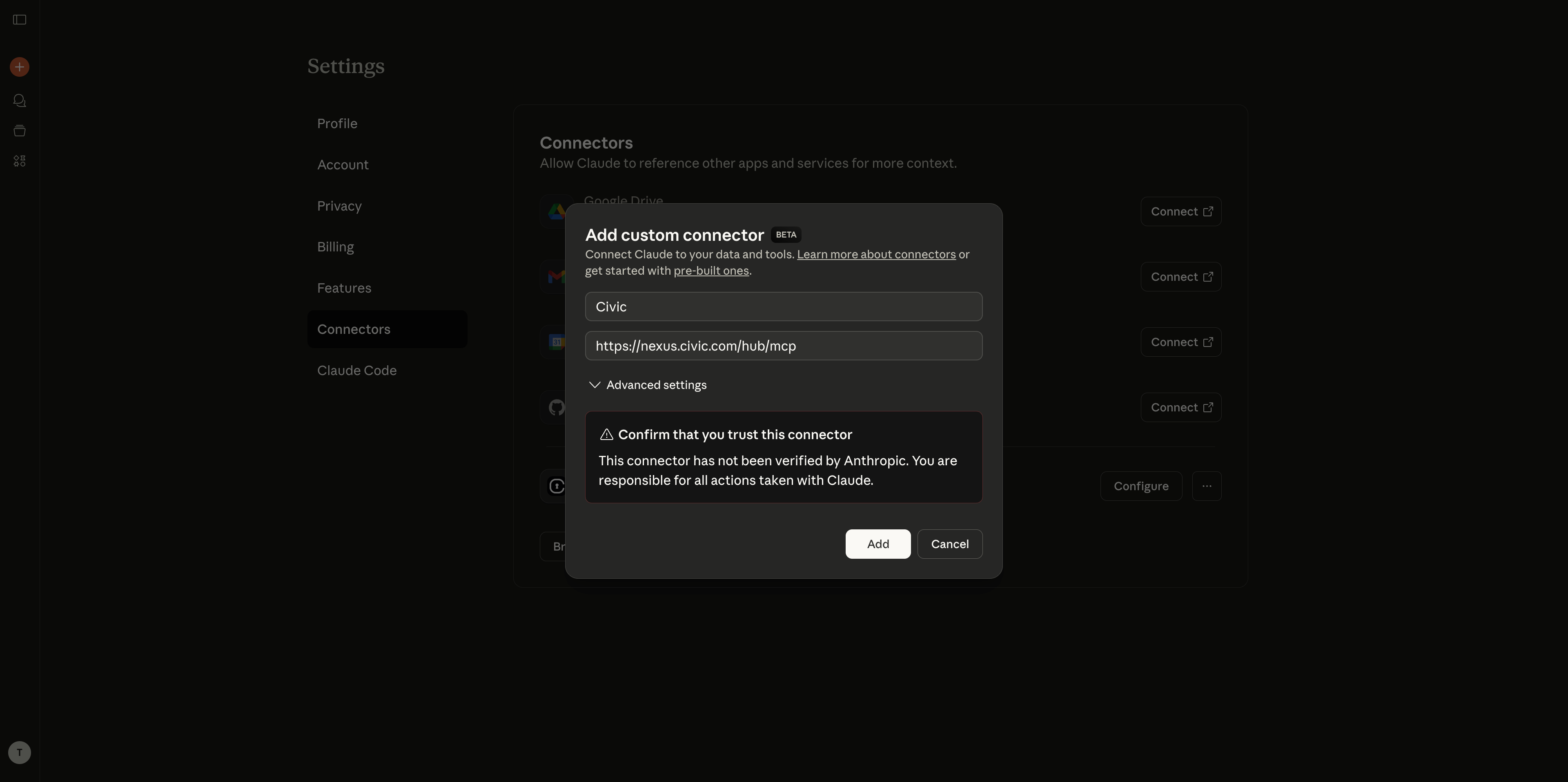
2. Enter a name: **"Civic"**
3. In "Remote MCP server URL" field, paste: `https://app.civic.com/hub/mcp`
4. Click **"Add"** to confirm
1. Click **"Add Custom Connector"**
2. Enter a name: **"Civic"**
3. In "Remote MCP server URL" field, paste: `https://app.civic.com/hub/mcp`
4. Click **"Add"** to confirm
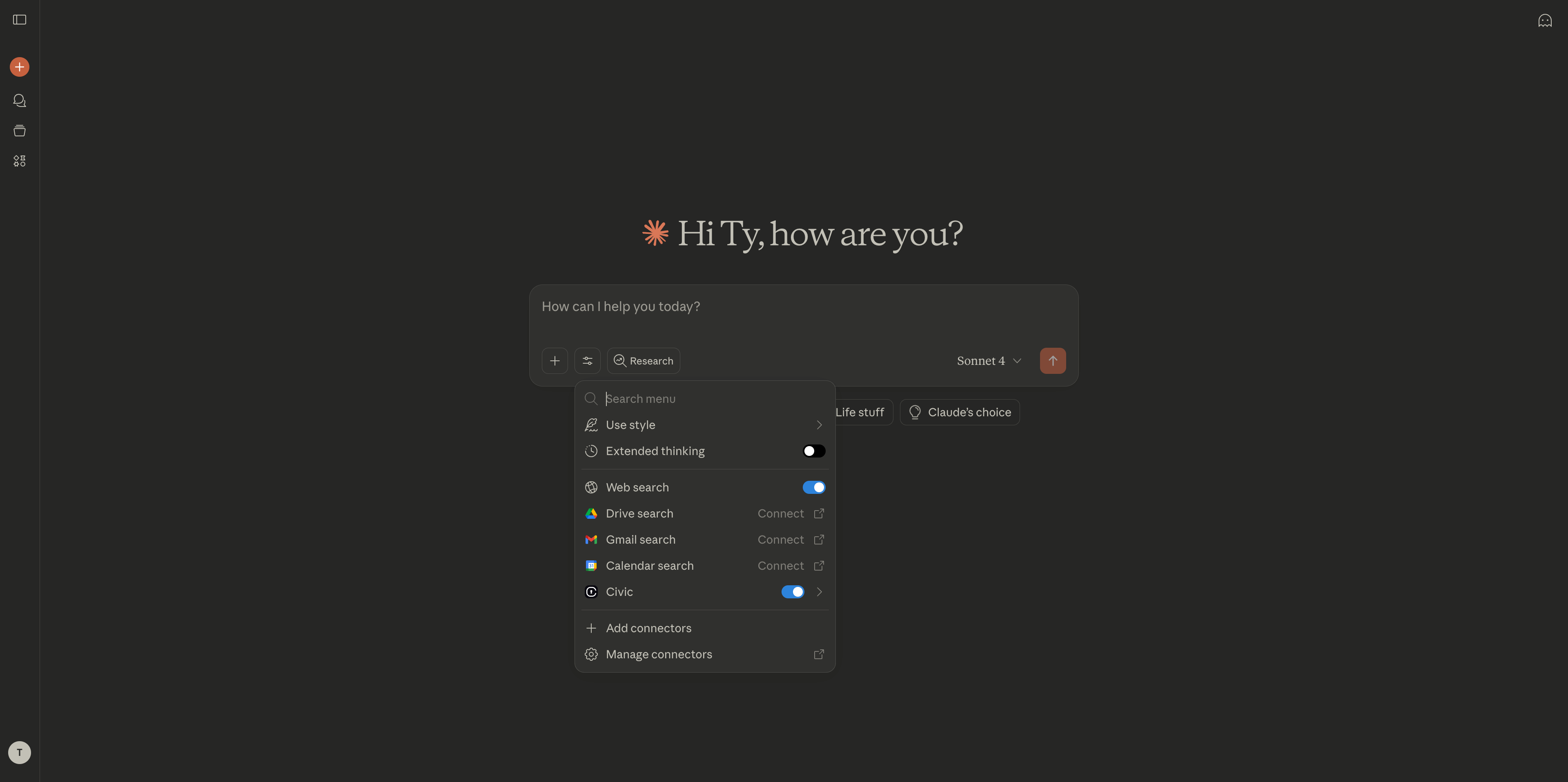
 1. The connector will appear in your list with a **"Connect"** button
2. Click **"Connect"** to begin authentication
3. Follow on-screen instructions to authorize access to your selected services
4. Return to **Settings > Connectors** to verify it shows as "Connected"
1. The connector will appear in your list with a **"Connect"** button
2. Click **"Connect"** to begin authentication
3. Follow on-screen instructions to authorize access to your selected services
4. Return to **Settings > Connectors** to verify it shows as "Connected"
 ## Step 3: Test Your Connection
Try these commands to verify everything is working:
```
"What MCP servers are available?"
"Check my GitHub repositories"
"What's in my Dropbox?"
"Show recent Slack messages"
```
## Step 3: Test Your Connection
Try these commands to verify everything is working:
```
"What MCP servers are available?"
"Check my GitHub repositories"
"What's in my Dropbox?"
"Show recent Slack messages"
```
 ## Managing Your Tools
### Adding More Tools
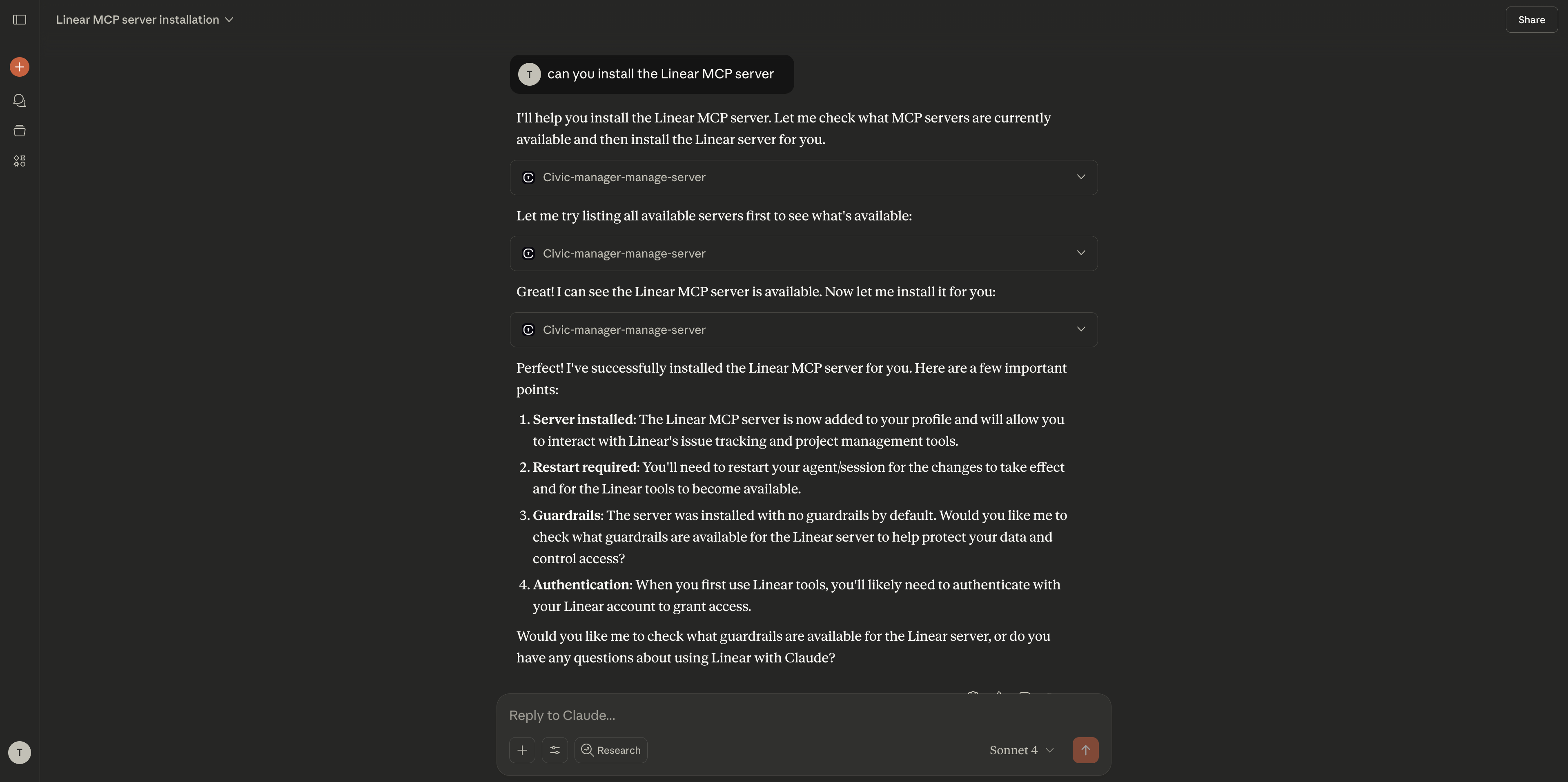
You can add new tools directly in your Claude Desktop chat:
```
"Connect me to GitHub"
"Add Slack to my available tools"
"I need access to Dropbox"
"Show me what tools are available to connect"
```
Claude will handle the connection process and guide you through any required authentication steps.
### Alternative Method: Hub Bridge (Free Users)
If you don't have Claude Pro, Team, or Enterprise, you won't have access to MCP connectors in the UI. Use Hub Bridge instead:
**What is Hub Bridge?** Hub Bridge (`@civic/hub-bridge`) is a lightweight local proxy that runs on your machine via `npx` and bridges stdio-only MCP clients to Civic's remote HTTP endpoint. Use it when your client doesn't support remote HTTP MCP connections natively. If your client supports HTTP/Streamable HTTP MCP — use that instead (it's simpler and has no Node.js dependency).
[Full Hub Bridge setup guide →](/civic/quickstart/hub-bridge)
**Free Claude users**: The MCP connector UI is only available on paid Claude plans. Use this method if you're on the free plan.
1. In Claude Desktop, go to **Settings**
2. Click the **Developer** tab
3. Click **Edit Config** to open `claude_desktop_config.json`
Add this to your config file:
```json theme={null}
{
"mcpServers": {
"civic": {
"command": "npx",
"args": ["-y", "@civic/hub-bridge@latest"]
}
}
}
```
This uses the **Hub Bridge** method which works with any Claude Desktop version, including free.
1. Save the config file
2. **Restart Claude Desktop** for changes to take effect
When you first use an MCP command, Hub Bridge opens a browser window to app.civic.com. Sign in to authenticate. If you haven't created a Civic account yet, you'll be walked through tool selection during sign-up.
### Removing Tools
You can disconnect from specific tools directly in chat:
```
"Disconnect from Slack"
"Remove GitHub from my tools"
"What tools do I currently have connected?"
"Stop my access to Dropbox"
```
### Managing the Entire Connector
To remove the Civic connector completely:
Go to **Settings > Connectors** in Claude Desktop
1. Find "Civic" in your connectors list
2. Click **Remove** or **Delete** next to the connector
3. Confirm the removal when prompted
Visit [app.civic.com](https://app.civic.com) to revoke service authorizations if you no longer want Civic to have access
## Common Questions
Yes, MCP connectors are currently only available on Claude Pro and Team plans. The free Claude plan doesn't support external integrations.
If you encounter authentication issues:
* Make sure you're logged into the correct account for the service
* Check if your account email matches between app.civic.com and the service
* Try removing and re-adding the MCP connector with a fresh URL
* Check our [troubleshooting guide](/civic/troubleshooting) for more solutions
If your app.civic.com account uses a different email than your connected services (e.g., [work@company.com](mailto:work@company.com) vs [personal@gmail.com](mailto:personal@gmail.com)), make sure you authenticate with the correct account for each service during the OAuth flow.
Try these steps:
* Update Claude Desktop to the latest version
* Remove the connector completely and re-add with a fresh MCP URL
* Check that your system allows Claude network access
* Restart Claude Desktop after making changes
## Two-Minute Verification
Once connected, test these prompts to make sure everything works:
```
"List my GitHub repositories"
"Show me my recent pull requests"
"What issues are assigned to me?"
```
```
"What are the recent messages in #general?"
"List my Slack workspaces"
"Send a test message to myself"
```
```
"What files are in my Dropbox?"
"Show me recently modified documents"
"Search for files containing 'project'"
```
## Need Help?
Solutions for common Claude Desktop connection issues
## Next Steps
Now that you're connected, explore what you can do:
Add more MCP servers to expand Claude's capabilities
Learn how Civic keeps your data secure
Deploy Civic in autonomous agents and automation platforms
See setup guides for other AI clients
## Managing Your Tools
### Adding More Tools
You can add new tools directly in your Claude Desktop chat:
```
"Connect me to GitHub"
"Add Slack to my available tools"
"I need access to Dropbox"
"Show me what tools are available to connect"
```
Claude will handle the connection process and guide you through any required authentication steps.
### Alternative Method: Hub Bridge (Free Users)
If you don't have Claude Pro, Team, or Enterprise, you won't have access to MCP connectors in the UI. Use Hub Bridge instead:
**What is Hub Bridge?** Hub Bridge (`@civic/hub-bridge`) is a lightweight local proxy that runs on your machine via `npx` and bridges stdio-only MCP clients to Civic's remote HTTP endpoint. Use it when your client doesn't support remote HTTP MCP connections natively. If your client supports HTTP/Streamable HTTP MCP — use that instead (it's simpler and has no Node.js dependency).
[Full Hub Bridge setup guide →](/civic/quickstart/hub-bridge)
**Free Claude users**: The MCP connector UI is only available on paid Claude plans. Use this method if you're on the free plan.
1. In Claude Desktop, go to **Settings**
2. Click the **Developer** tab
3. Click **Edit Config** to open `claude_desktop_config.json`
Add this to your config file:
```json theme={null}
{
"mcpServers": {
"civic": {
"command": "npx",
"args": ["-y", "@civic/hub-bridge@latest"]
}
}
}
```
This uses the **Hub Bridge** method which works with any Claude Desktop version, including free.
1. Save the config file
2. **Restart Claude Desktop** for changes to take effect
When you first use an MCP command, Hub Bridge opens a browser window to app.civic.com. Sign in to authenticate. If you haven't created a Civic account yet, you'll be walked through tool selection during sign-up.
### Removing Tools
You can disconnect from specific tools directly in chat:
```
"Disconnect from Slack"
"Remove GitHub from my tools"
"What tools do I currently have connected?"
"Stop my access to Dropbox"
```
### Managing the Entire Connector
To remove the Civic connector completely:
Go to **Settings > Connectors** in Claude Desktop
1. Find "Civic" in your connectors list
2. Click **Remove** or **Delete** next to the connector
3. Confirm the removal when prompted
Visit [app.civic.com](https://app.civic.com) to revoke service authorizations if you no longer want Civic to have access
## Common Questions
Yes, MCP connectors are currently only available on Claude Pro and Team plans. The free Claude plan doesn't support external integrations.
If you encounter authentication issues:
* Make sure you're logged into the correct account for the service
* Check if your account email matches between app.civic.com and the service
* Try removing and re-adding the MCP connector with a fresh URL
* Check our [troubleshooting guide](/civic/troubleshooting) for more solutions
If your app.civic.com account uses a different email than your connected services (e.g., [work@company.com](mailto:work@company.com) vs [personal@gmail.com](mailto:personal@gmail.com)), make sure you authenticate with the correct account for each service during the OAuth flow.
Try these steps:
* Update Claude Desktop to the latest version
* Remove the connector completely and re-add with a fresh MCP URL
* Check that your system allows Claude network access
* Restart Claude Desktop after making changes
## Two-Minute Verification
Once connected, test these prompts to make sure everything works:
```
"List my GitHub repositories"
"Show me my recent pull requests"
"What issues are assigned to me?"
```
```
"What are the recent messages in #general?"
"List my Slack workspaces"
"Send a test message to myself"
```
```
"What files are in my Dropbox?"
"Show me recently modified documents"
"Search for files containing 'project'"
```
## Need Help?
Solutions for common Claude Desktop connection issues
## Next Steps
Now that you're connected, explore what you can do:
Add more MCP servers to expand Claude's capabilities
Learn how Civic keeps your data secure
Deploy Civic in autonomous agents and automation platforms
See setup guides for other AI clients