> ## Documentation Index
> Fetch the complete documentation index at: https://docs.civic.com/llms.txt
> Use this file to discover all available pages before exploring further.
# Claude.ai (Web) Setup
> Connect Claude.ai web interface to Civic
Claude.ai web interface supports direct MCP server connections. You'll need a Claude Pro or Team plan to access MCP connectors.
## Prerequisites
MCP connectors require a paid Claude subscription
Create a free account on app.civic.com
## Step 1: Set Up Your Civic Account
If you haven't already, create your account and select your tools at app.civic.com:
Go to [app.civic.com](https://app.civic.com) and sign in with Google, GitHub, or email.
During onboarding, choose which services you want your AI to access — GitHub, Slack, Google Workspace, Dropbox, and more. This creates your default toolkit.
Your connection URL is the same for every Civic account:
```
https://app.civic.com/hub/mcp
```
The URL is not personalized — what makes it *yours* is authentication. When you connect your client and complete the OAuth flow, Civic links that session to your account and toolkit.
The MCP URL (`https://app.civic.com/hub/mcp`) is the same for every Civic user. What makes it yours is authentication — when you click **Connect** in Claude.ai, a browser window opens to app.civic.com and links that session to your account and toolkit.
## Step 2: Add MCP Server in Claude.ai
1. Go to [claude.ai](https://claude.ai) in your web browser
2. Click on **Settings** (usually in the bottom left or profile menu)
3. Navigate to **Connectors**
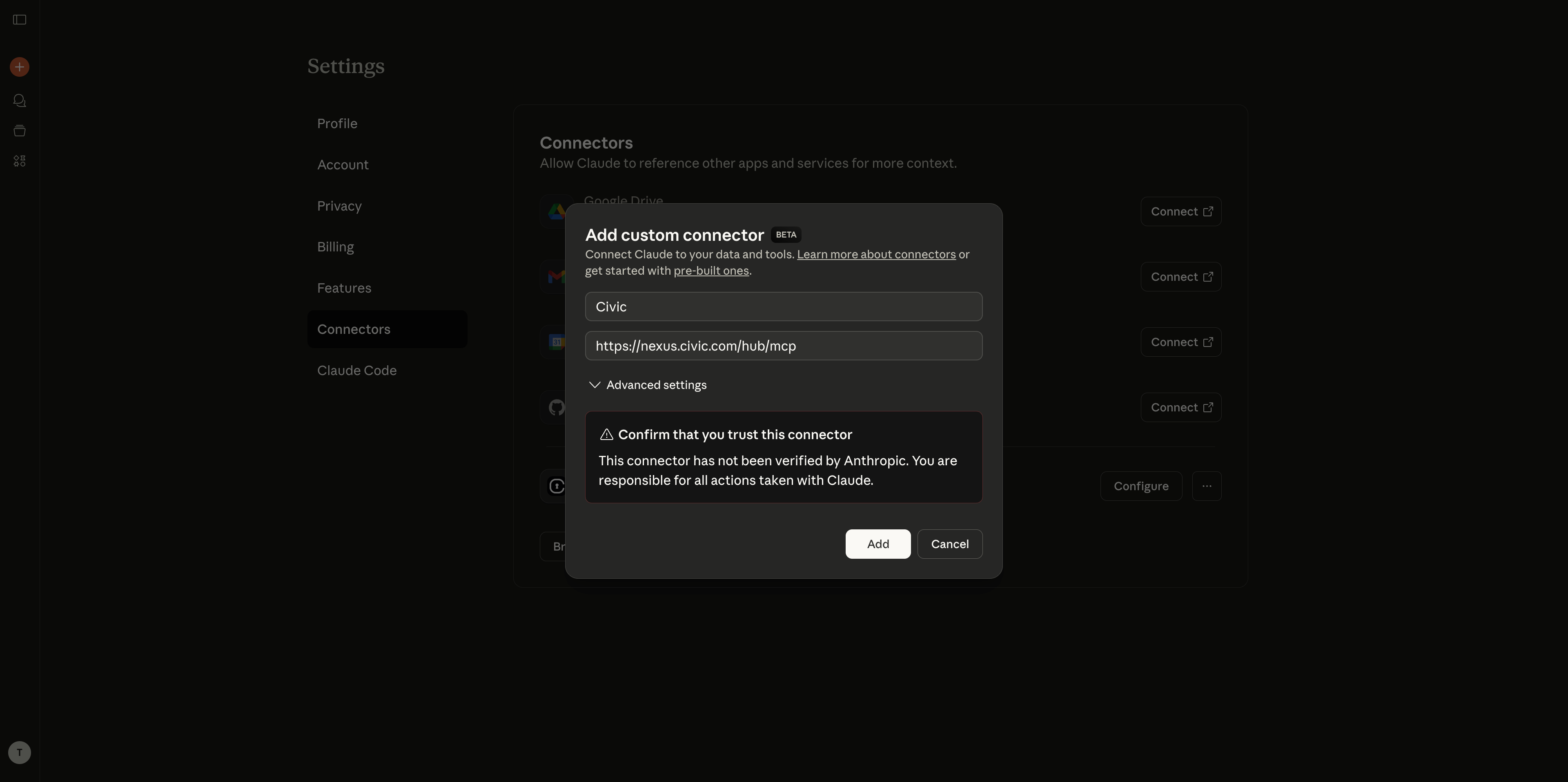
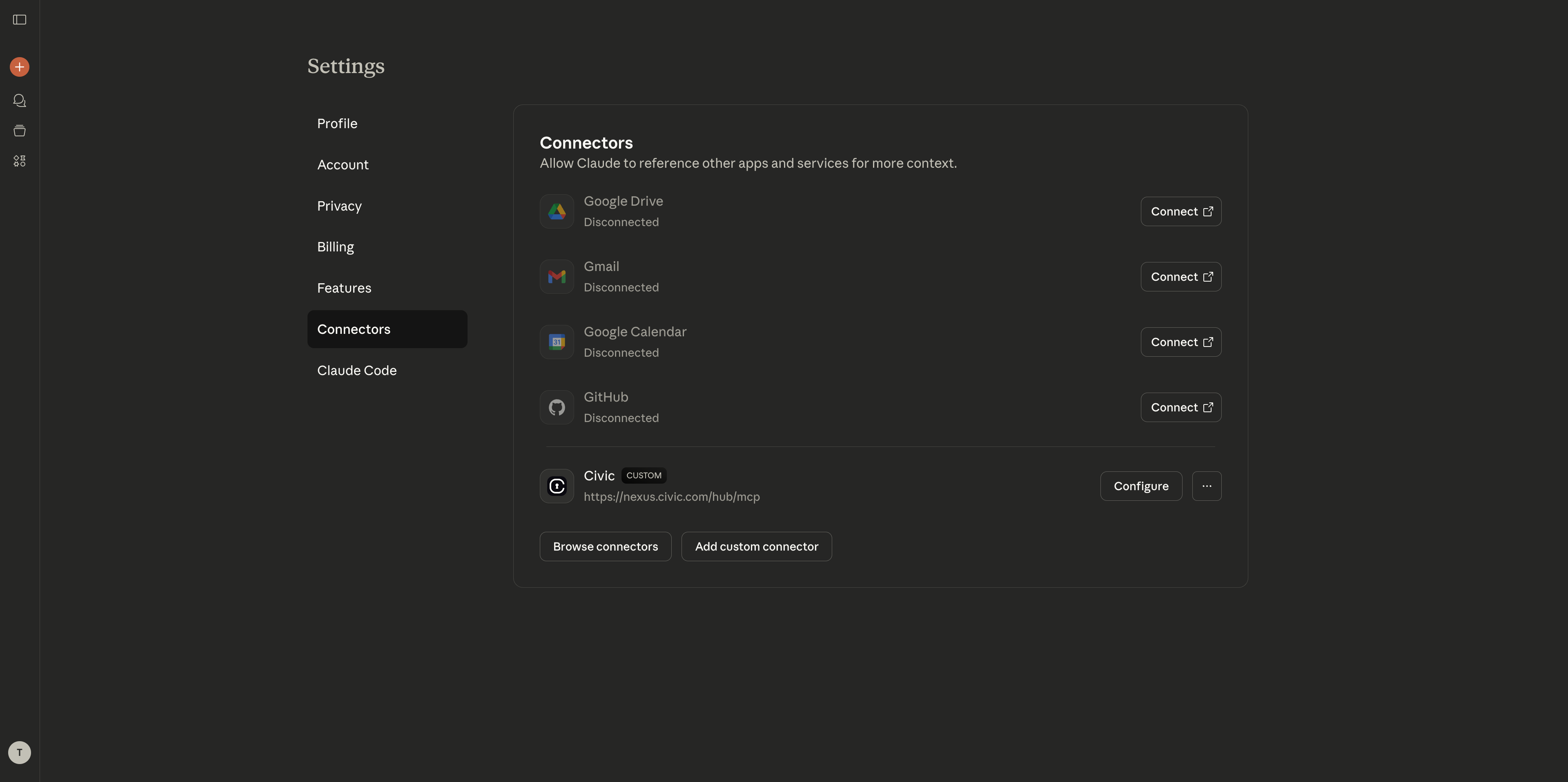 1. Click **"Add Custom Connector"**
2. Enter a name: **"Civic"**
3. In "Remote MCP server URL" field, paste: `https://app.civic.com/hub/mcp`
4. Click **"Add"** to confirm
1. Click **"Add Custom Connector"**
2. Enter a name: **"Civic"**
3. In "Remote MCP server URL" field, paste: `https://app.civic.com/hub/mcp`
4. Click **"Add"** to confirm
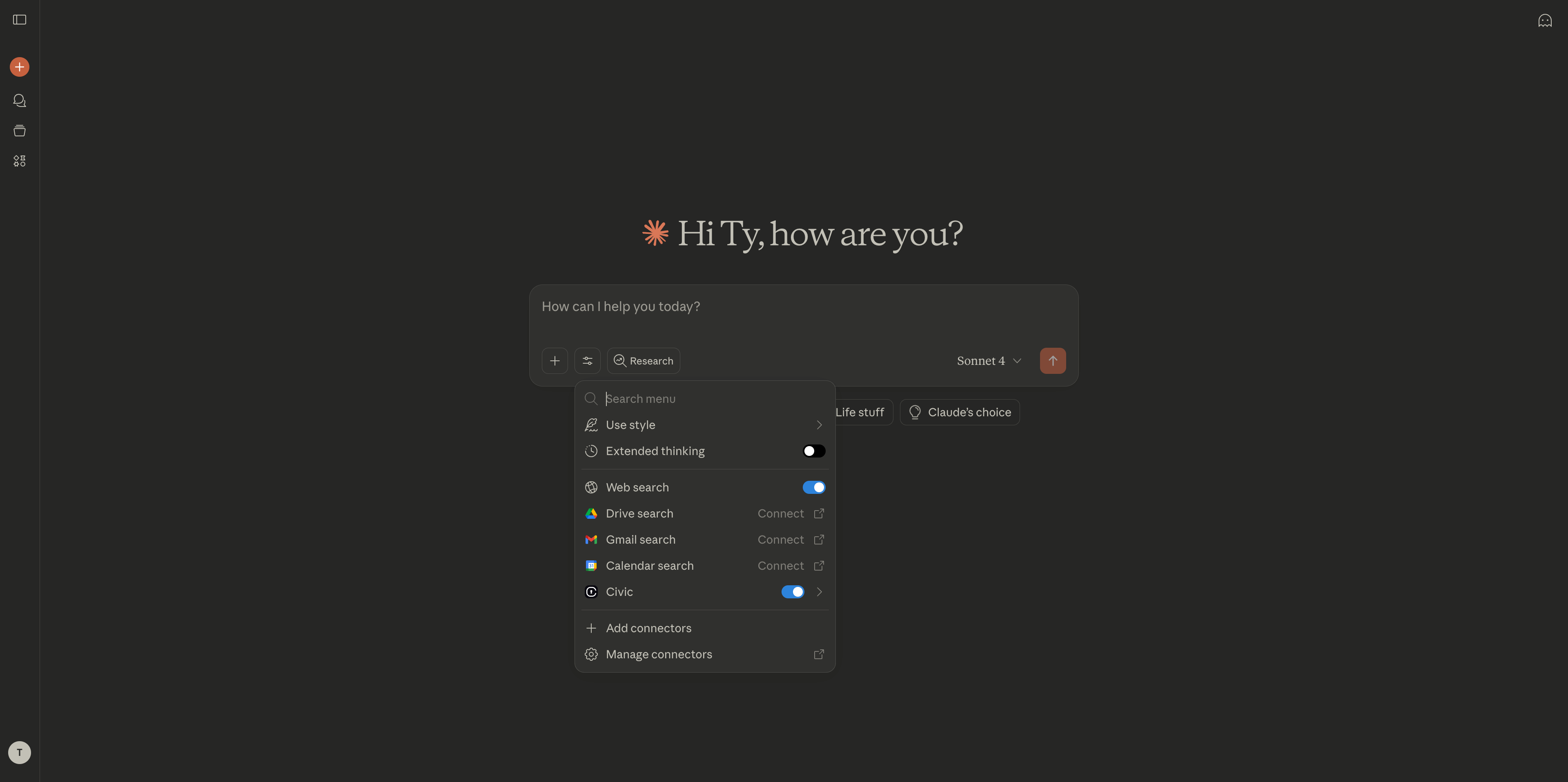
 1. The connector will appear in your list with a **"Connect"** button
2. Click **"Connect"** to begin authentication
3. Follow on-screen instructions to authorize access to your selected services
4. Return to **Settings > Connectors** to verify it shows as "Connected"
1. The connector will appear in your list with a **"Connect"** button
2. Click **"Connect"** to begin authentication
3. Follow on-screen instructions to authorize access to your selected services
4. Return to **Settings > Connectors** to verify it shows as "Connected"
 ## Step 3: Test Your Connection
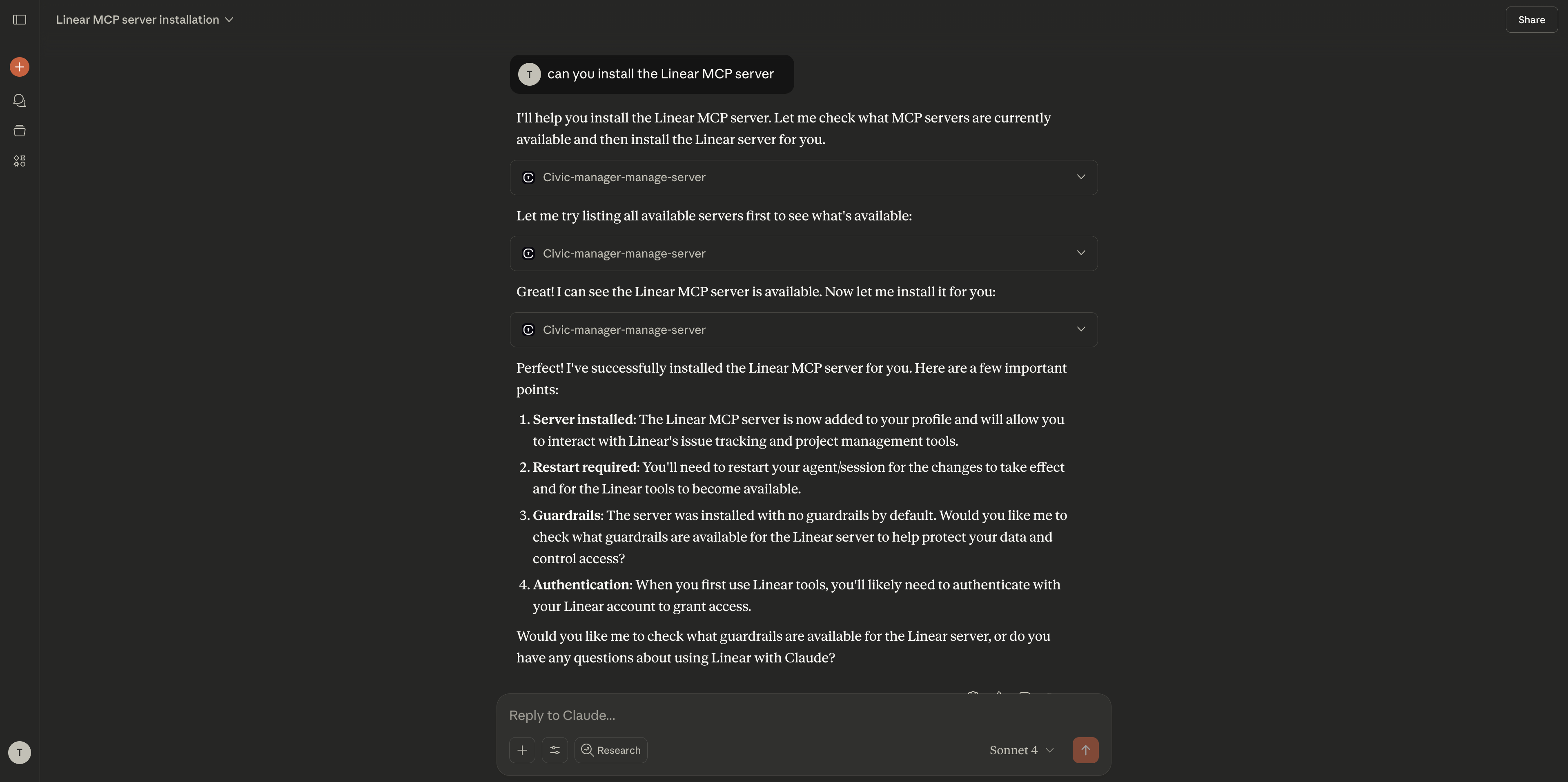
Try these commands to verify everything is working:
```
"What MCP servers are available?"
"Check my GitHub repositories"
"What's in my Dropbox?"
"Show recent Slack messages"
```
## Step 3: Test Your Connection
Try these commands to verify everything is working:
```
"What MCP servers are available?"
"Check my GitHub repositories"
"What's in my Dropbox?"
"Show recent Slack messages"
```
 ## Managing Your Tools
### Adding More Tools
You can add new tools directly in your Claude.ai chat:
```
"Connect me to GitHub"
"Add Slack to my available tools"
"I need access to Dropbox"
"Show me what tools are available to connect"
```
Claude will handle the connection process and guide you through any required authentication steps.
### Removing Tools
To disconnect from specific tools, just ask in chat:
```
"Disconnect from Slack"
"Remove GitHub from my tools"
"What tools do I currently have connected?"
"Stop my access to Dropbox"
```
### Managing the Entire Connector
To remove the Civic connector completely:
Go to **Settings > Connectors** in Claude.ai
1. Find "Civic" in your connectors list
2. Click **Remove** or **Delete** next to the connector
3. Confirm the removal when prompted
Visit [app.civic.com](https://app.civic.com) to revoke service authorizations if you no longer want Civic to have access
## Common Questions
Yes, MCP connectors are only available on Claude Pro and Team plans. The free plan doesn't support external integrations.
* Make sure you're signed into the correct accounts for your connected services
* Try removing and re-adding the connector with a fresh URL from app.civic.com
* Check our [troubleshooting guide](/civic/troubleshooting) for more solutions
Yes! You can add multiple MCP connectors from different providers. Each will appear separately in your connectors list.
Data flows directly between Claude.ai and your connected services through Civic. See our [security details](/civic/reference/security) for more information.
## Need Help?
Solutions for common connection issues
See all available MCP servers you can connect
Learn how Civic protects your data
Contact us for personalized help
## Managing Your Tools
### Adding More Tools
You can add new tools directly in your Claude.ai chat:
```
"Connect me to GitHub"
"Add Slack to my available tools"
"I need access to Dropbox"
"Show me what tools are available to connect"
```
Claude will handle the connection process and guide you through any required authentication steps.
### Removing Tools
To disconnect from specific tools, just ask in chat:
```
"Disconnect from Slack"
"Remove GitHub from my tools"
"What tools do I currently have connected?"
"Stop my access to Dropbox"
```
### Managing the Entire Connector
To remove the Civic connector completely:
Go to **Settings > Connectors** in Claude.ai
1. Find "Civic" in your connectors list
2. Click **Remove** or **Delete** next to the connector
3. Confirm the removal when prompted
Visit [app.civic.com](https://app.civic.com) to revoke service authorizations if you no longer want Civic to have access
## Common Questions
Yes, MCP connectors are only available on Claude Pro and Team plans. The free plan doesn't support external integrations.
* Make sure you're signed into the correct accounts for your connected services
* Try removing and re-adding the connector with a fresh URL from app.civic.com
* Check our [troubleshooting guide](/civic/troubleshooting) for more solutions
Yes! You can add multiple MCP connectors from different providers. Each will appear separately in your connectors list.
Data flows directly between Claude.ai and your connected services through Civic. See our [security details](/civic/reference/security) for more information.
## Need Help?
Solutions for common connection issues
See all available MCP servers you can connect
Learn how Civic protects your data
Contact us for personalized help