> ## Documentation Index
> Fetch the complete documentation index at: https://docs.civic.com/llms.txt
> Use this file to discover all available pages before exploring further.
# Microsoft 365 Teams
> Microsoft Teams collaboration and messaging platform for workplace communication
## Overview
The Microsoft 365 Teams server enables AI assistants to interact with [Microsoft Teams](https://www.microsoft.com/microsoft-teams/group-chat-software), providing channel messaging, team discovery, and cross-service workflow capabilities through Microsoft Graph API.
## How to Add Microsoft 365 Teams
The setup process varies depending on your Microsoft account type:
**Free Teams Users:** The Microsoft Teams MCP server API is incompatible with the free Teams app. You must have a Microsoft 365 Business license or Azure Cloud tenant to use this integration.
### Microsoft 365 Business Users
For Microsoft 365 Business or Office 365 license holders, **admin approval is required** for first-time setup:
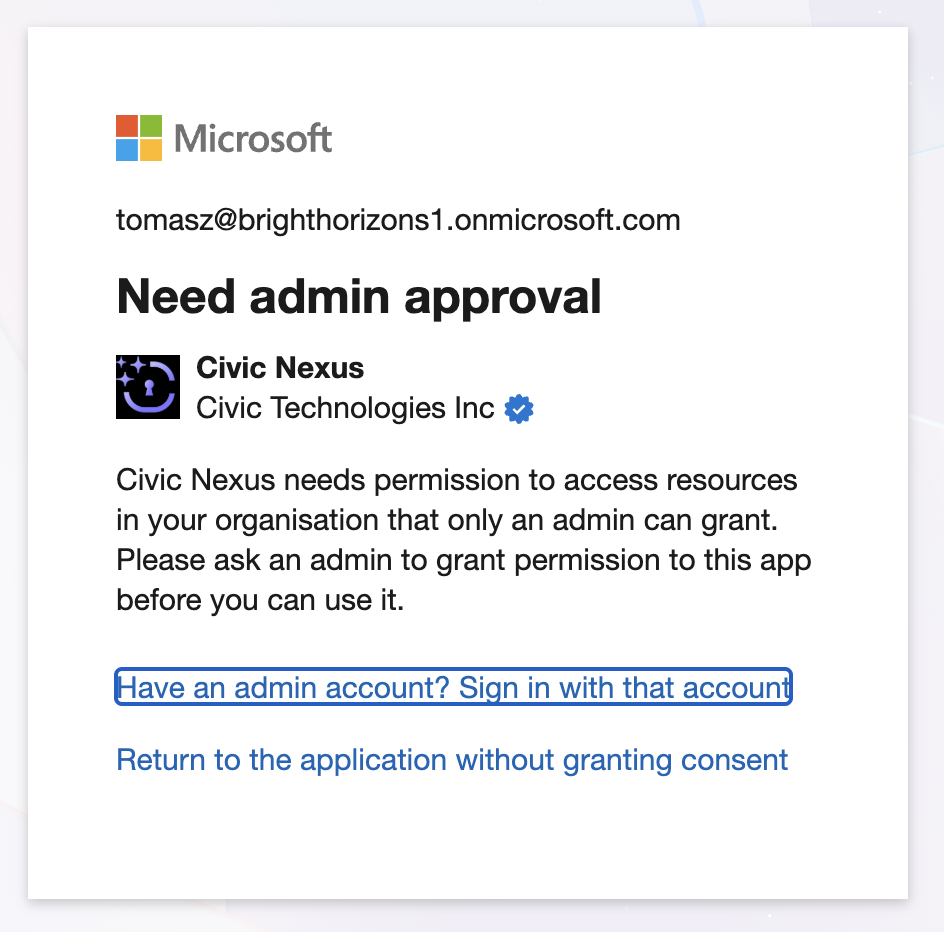
Add the Microsoft 365 Teams server and attempt to authorize. Non-admin users will see a "Need admin approval" dialog indicating that Civic needs permission to access resources in your organization that only an admin can grant.
 Your Microsoft tenant administrator must configure consent in Microsoft Entra ID:
**Access Entra ID:**
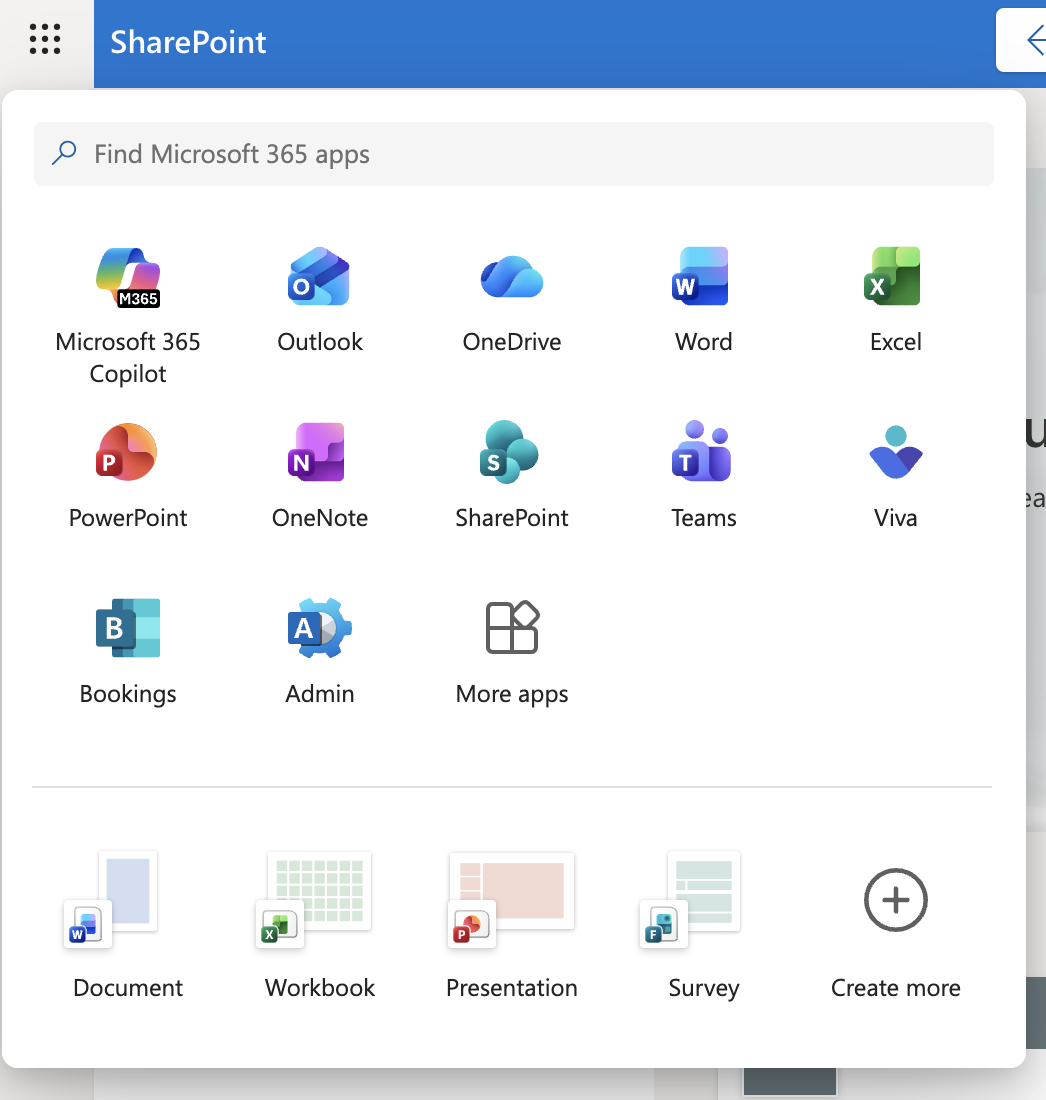
* From Microsoft 365: Click the app launcher (grid icon) in the top-left corner of any Microsoft 365 app → Click **Admin** → From the left sidebar, click **Show All** → Under "Admin centers", select **Identity**
Your Microsoft tenant administrator must configure consent in Microsoft Entra ID:
**Access Entra ID:**
* From Microsoft 365: Click the app launcher (grid icon) in the top-left corner of any Microsoft 365 app → Click **Admin** → From the left sidebar, click **Show All** → Under "Admin centers", select **Identity**
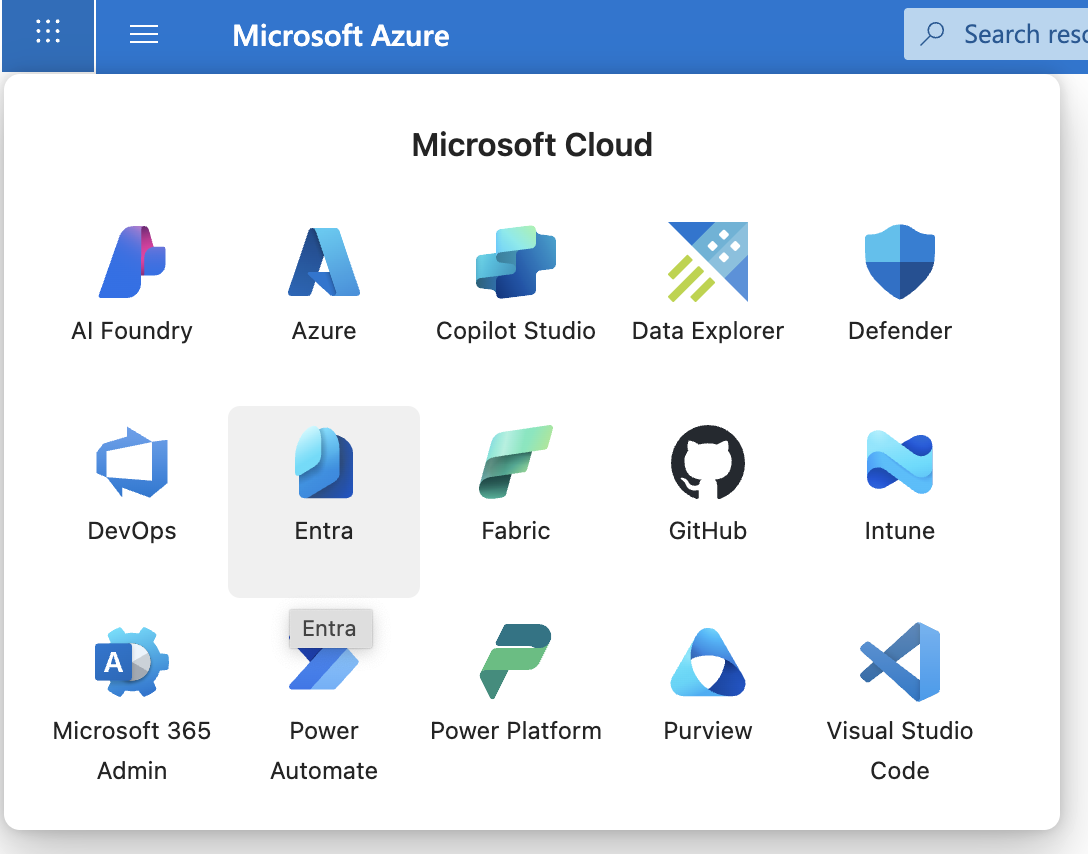
 * From Azure Portal: Click the app launcher (grid icon) in the top-left corner → Select **Entra** from the Microsoft Cloud services
 **Configure User Consent:**
1. In Entra ID, select **Enterprise apps** from the left sidebar
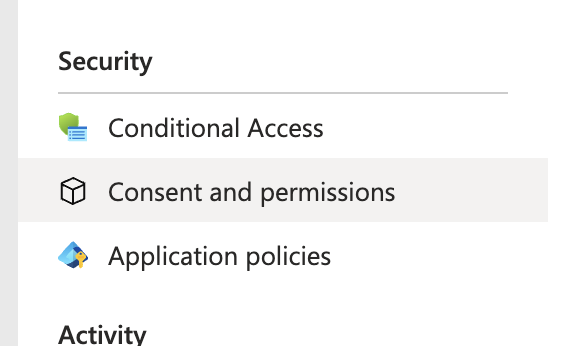
2. Under the "Security" section, click **Consent and permissions**
3. Click **User consent settings**
**Configure User Consent:**
1. In Entra ID, select **Enterprise apps** from the left sidebar
2. Under the "Security" section, click **Consent and permissions**
3. Click **User consent settings**
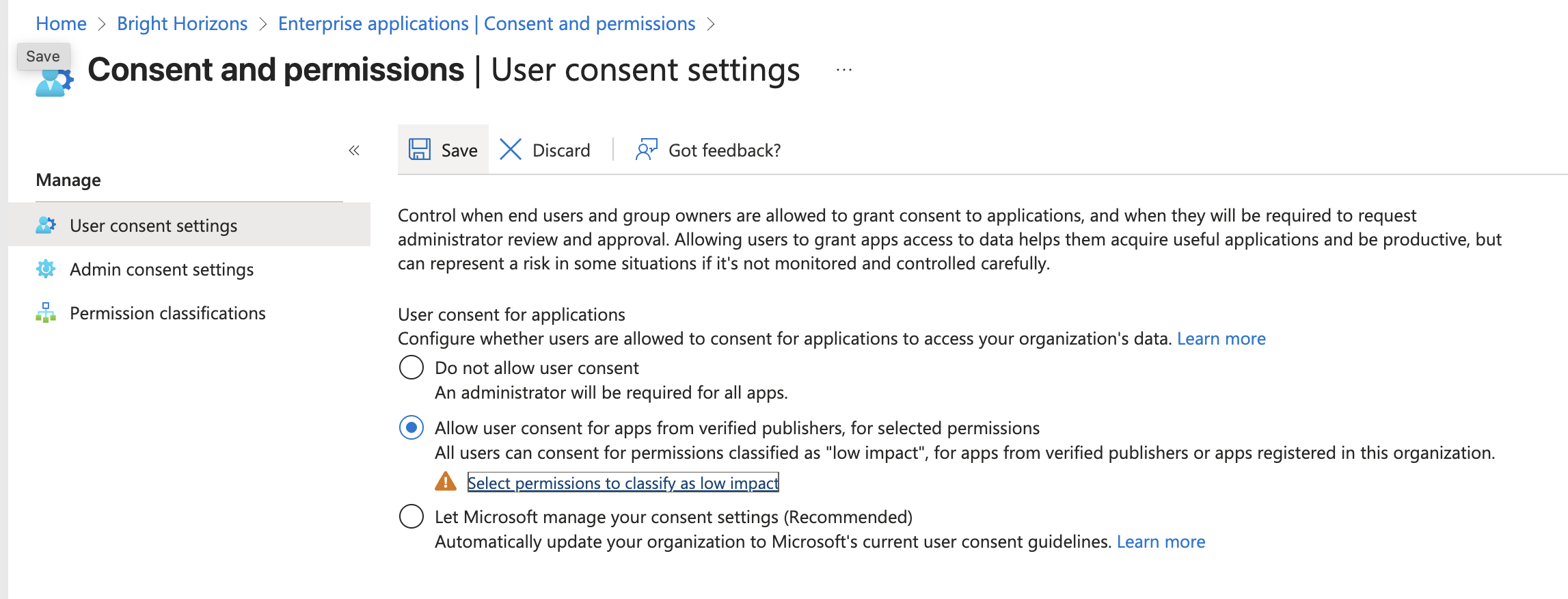 4. Select "Allow user consent for apps from verified publishers, for selected permissions" (This allows users to trigger authorization requests from Civic, since Civic is a verified publisher)
5. Click **Save** (Important: Save before proceeding to the next step)
6. Click "Select permissions to classify as low impact" (This whitelists the specific permissions users are allowed to consent to. If prompted to save, click **Save** before moving on)
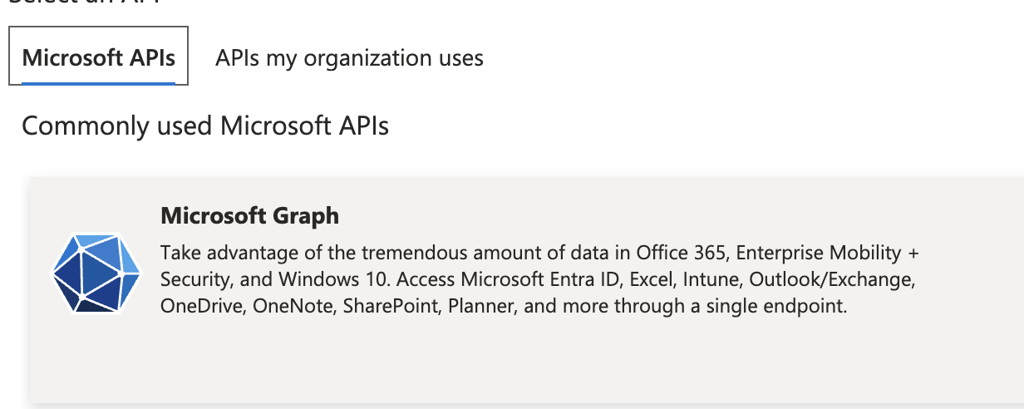
7. On the permissions screen, click **Add permissions** → Select **Microsoft Graph**
4. Select "Allow user consent for apps from verified publishers, for selected permissions" (This allows users to trigger authorization requests from Civic, since Civic is a verified publisher)
5. Click **Save** (Important: Save before proceeding to the next step)
6. Click "Select permissions to classify as low impact" (This whitelists the specific permissions users are allowed to consent to. If prompted to save, click **Save** before moving on)
7. On the permissions screen, click **Add permissions** → Select **Microsoft Graph**
 8. Select all **OpenId permissions** (required): `openid`, `profile`, `email`
9. Add the base permissions: `offline_access`, `User.Read`
10. Add Teams-specific permissions: `Team.ReadBasic.All`, `Channel.ReadBasic.All`, `TeamMember.Read.All`, `ChannelMessage.Read.All`, `ChannelMessage.Send`
11. Click **Add permissions** then **Save**
**Important:** Microsoft Entra ID changes can take up to **1 hour** to propagate across all services. After your administrator completes the configuration, wait at least an hour before retrying authorization in Civic. Attempting too early will result in permission errors.
You'll now see a standard OAuth consent screen showing "Permissions requested" by Civic. The app will request permissions such as:
* Maintain access to data you have given it access to
* Read basic information of all teams
* Read the names and descriptions of all channels
* Read and send channel messages
* View your basic profile
Click **Accept** to complete the authorization and start using the Microsoft 365 Teams integration.
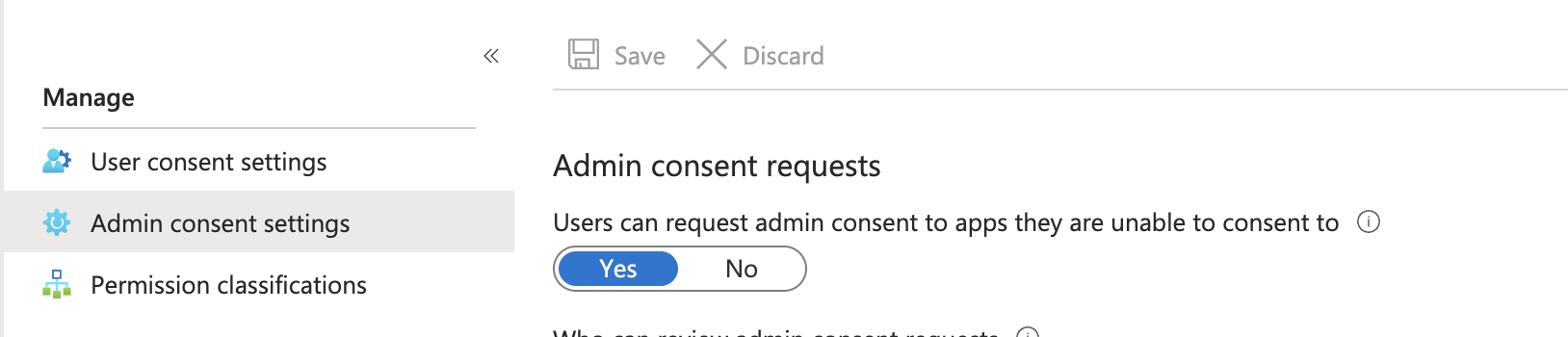
**Alternative Setup Method:** The steps above use a proactive approach where admins configure permissions up-front. Alternatively, administrators can enable "Admin consent requests" (found in **Admin consent settings** within Entra ID). This allows users to trigger approval requests directly when they attempt to authorize, and admins can approve on-demand rather than pre-configuring permissions.
8. Select all **OpenId permissions** (required): `openid`, `profile`, `email`
9. Add the base permissions: `offline_access`, `User.Read`
10. Add Teams-specific permissions: `Team.ReadBasic.All`, `Channel.ReadBasic.All`, `TeamMember.Read.All`, `ChannelMessage.Read.All`, `ChannelMessage.Send`
11. Click **Add permissions** then **Save**
**Important:** Microsoft Entra ID changes can take up to **1 hour** to propagate across all services. After your administrator completes the configuration, wait at least an hour before retrying authorization in Civic. Attempting too early will result in permission errors.
You'll now see a standard OAuth consent screen showing "Permissions requested" by Civic. The app will request permissions such as:
* Maintain access to data you have given it access to
* Read basic information of all teams
* Read the names and descriptions of all channels
* Read and send channel messages
* View your basic profile
Click **Accept** to complete the authorization and start using the Microsoft 365 Teams integration.
**Alternative Setup Method:** The steps above use a proactive approach where admins configure permissions up-front. Alternatively, administrators can enable "Admin consent requests" (found in **Admin consent settings** within Entra ID). This allows users to trigger approval requests directly when they attempt to authorize, and admins can approve on-demand rather than pre-configuring permissions.
 ## What You Can Do
Send messages to channels and engage with team members
List teams, channels, and members across your workspace
Track channel activity and summarize recent discussions
Combine Teams with Mail and OneDrive for powerful automation
## Available Tools (6)
Send standard or important messages to channels
Post messages to channels with optional formatting
List all members of a team with roles and contact information
List all channels within a specific team
List all teams the user is a member of with metadata
Get detailed information about the current user's profile
## Use Cases
### Basic Operations
"Show me all the teams I'm a member of" - Discover your Teams workspace.
### Channel Discovery
"List all channels in the Civic Technologies team" - Explore team structure.
### Message Monitoring
"Show me the last 10 messages from the #general channel" - Review recent activity.
### Team Communication
"Post 'Meeting starts in 15 minutes!' to the #general channel" - Send quick updates.
### Important Announcements
"Send an important message to #announcements: 'Server maintenance scheduled for tonight at 10 PM'" - Flag critical messages.
### Cross-Service Integration - Teams + Mail
"Create a summary of today's #general messages and email it to me" - Combine Teams activity with email reporting.
### Cross-Service Integration - Teams + OneDrive
"Save today's #meeting-notes messages as a document in OneDrive" - Archive discussions to cloud storage.
### Multi-Service Workflows
"Generate an intelligence report of my Teams workspace (teams, channels, members, activity), email it to me, and post a summary to #general" - Create comprehensive automation across multiple Microsoft 365 services.
**Channel IDs:** Channel IDs are long strings like `19:xxx@thread.tacv2`. The system retrieves these automatically when you reference channels by name.
**Team IDs:** Team IDs are GUIDs. You can reference teams by name and the system will look them up automatically.
**Office 365 Note:** Office 365 is the deprecated term for Microsoft 365. They refer to the same product platform.
## Troubleshooting
**Still seeing "Need admin approval" after administrator configured permissions?**
Wait the full hour for Microsoft Entra ID changes to propagate. If the issue persists after one hour, verify that:
* The administrator clicked **Save** after each configuration step
* All required permissions were added (OpenId, base permissions, and Teams-specific permissions)
* The "Allow user consent for apps from verified publishers" option was enabled
**Still seeing consent dialogs after successful authorization?**
This indicates missing permissions. Ask your administrator to review the permission list in Step 2 and ensure all required Teams permissions are whitelisted.
**Free Teams compatibility error?**
The Microsoft Teams API is incompatible with the free Teams app. You must have a Microsoft 365 Business license or Enterprise subscription to use this integration.
**Cannot see teams or channels?**
Verify you're a member of the teams you're trying to access. The MCP server only shows teams and channels you have access to.
**Known Limitations:**
* **Private chats:** Only channel messages are supported (not 1:1 or group chats)
* **File attachments:** Cannot upload files directly to Teams (use OneDrive with share links instead)
* **Channel/team creation:** Cannot create or delete channels or teams (read and message operations only)
***
## Guardrails
This server supports all [14 universal guardrails](/civic/concepts/guardrails). Server-specific guardrails are coming soon.
## What You Can Do
Send messages to channels and engage with team members
List teams, channels, and members across your workspace
Track channel activity and summarize recent discussions
Combine Teams with Mail and OneDrive for powerful automation
## Available Tools (6)
Send standard or important messages to channels
Post messages to channels with optional formatting
List all members of a team with roles and contact information
List all channels within a specific team
List all teams the user is a member of with metadata
Get detailed information about the current user's profile
## Use Cases
### Basic Operations
"Show me all the teams I'm a member of" - Discover your Teams workspace.
### Channel Discovery
"List all channels in the Civic Technologies team" - Explore team structure.
### Message Monitoring
"Show me the last 10 messages from the #general channel" - Review recent activity.
### Team Communication
"Post 'Meeting starts in 15 minutes!' to the #general channel" - Send quick updates.
### Important Announcements
"Send an important message to #announcements: 'Server maintenance scheduled for tonight at 10 PM'" - Flag critical messages.
### Cross-Service Integration - Teams + Mail
"Create a summary of today's #general messages and email it to me" - Combine Teams activity with email reporting.
### Cross-Service Integration - Teams + OneDrive
"Save today's #meeting-notes messages as a document in OneDrive" - Archive discussions to cloud storage.
### Multi-Service Workflows
"Generate an intelligence report of my Teams workspace (teams, channels, members, activity), email it to me, and post a summary to #general" - Create comprehensive automation across multiple Microsoft 365 services.
**Channel IDs:** Channel IDs are long strings like `19:xxx@thread.tacv2`. The system retrieves these automatically when you reference channels by name.
**Team IDs:** Team IDs are GUIDs. You can reference teams by name and the system will look them up automatically.
**Office 365 Note:** Office 365 is the deprecated term for Microsoft 365. They refer to the same product platform.
## Troubleshooting
**Still seeing "Need admin approval" after administrator configured permissions?**
Wait the full hour for Microsoft Entra ID changes to propagate. If the issue persists after one hour, verify that:
* The administrator clicked **Save** after each configuration step
* All required permissions were added (OpenId, base permissions, and Teams-specific permissions)
* The "Allow user consent for apps from verified publishers" option was enabled
**Still seeing consent dialogs after successful authorization?**
This indicates missing permissions. Ask your administrator to review the permission list in Step 2 and ensure all required Teams permissions are whitelisted.
**Free Teams compatibility error?**
The Microsoft Teams API is incompatible with the free Teams app. You must have a Microsoft 365 Business license or Enterprise subscription to use this integration.
**Cannot see teams or channels?**
Verify you're a member of the teams you're trying to access. The MCP server only shows teams and channels you have access to.
**Known Limitations:**
* **Private chats:** Only channel messages are supported (not 1:1 or group chats)
* **File attachments:** Cannot upload files directly to Teams (use OneDrive with share links instead)
* **Channel/team creation:** Cannot create or delete channels or teams (read and message operations only)
***
## Guardrails
This server supports all [14 universal guardrails](/civic/concepts/guardrails). Server-specific guardrails are coming soon.