> ## Documentation Index
> Fetch the complete documentation index at: https://docs.civic.com/llms.txt
> Use this file to discover all available pages before exploring further.
# Microsoft SharePoint
> Manage SharePoint sites, documents, lists, and pages for team collaboration and content management
## Overview
The SharePoint server enables AI assistants to interact with [Microsoft SharePoint](https://www.microsoft.com/microsoft-365/sharepoint/collaboration), providing comprehensive site management, document handling, list creation, and content publishing capabilities through Microsoft Graph API.
## How to Add SharePoint
**Personal Outlook Users:** SharePoint is not available for free outlook.com email addresses. You must have a Microsoft 365 Business license or Azure Cloud tenant to use this integration.
### Microsoft 365 Business Users
For Microsoft 365 Business or Office 365 license holders, **admin approval is required** for first-time setup:
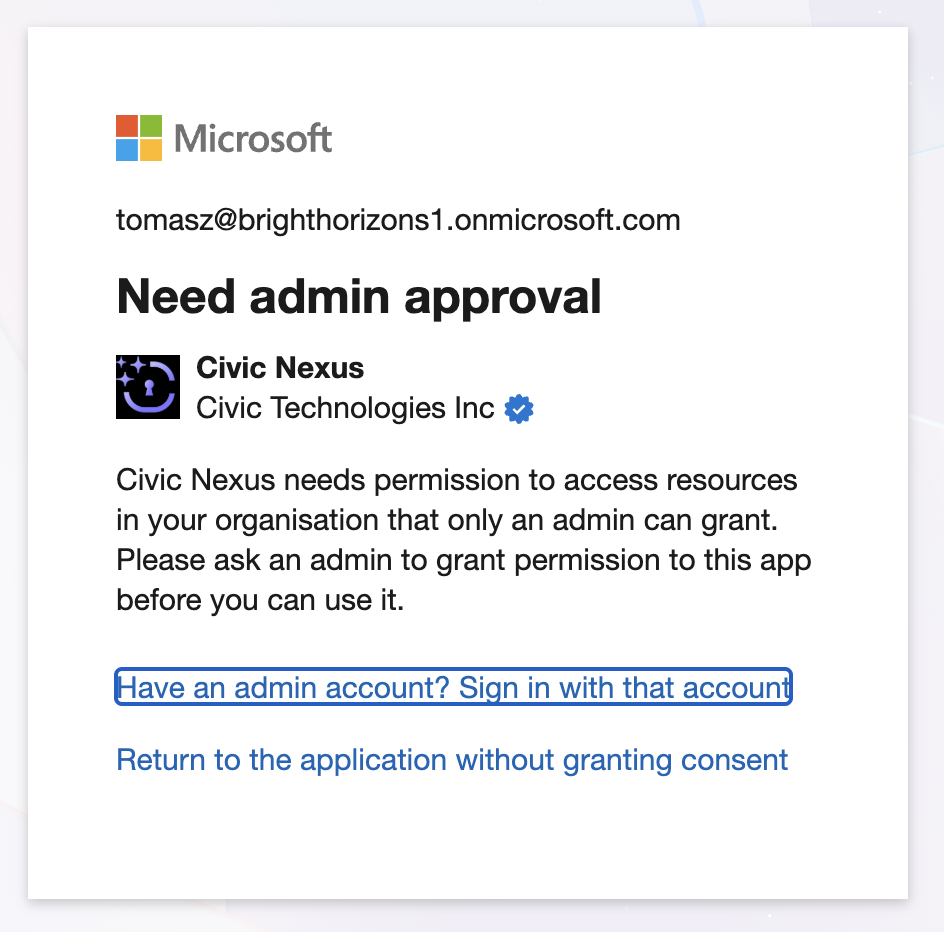
Add the SharePoint server and attempt to authorize. Non-admin users will see a "Need admin approval" dialog indicating that Civic needs permission to access resources in your organization that only an admin can grant.
 Your Microsoft tenant administrator must configure consent in Microsoft Entra ID:
**Access Entra ID:**
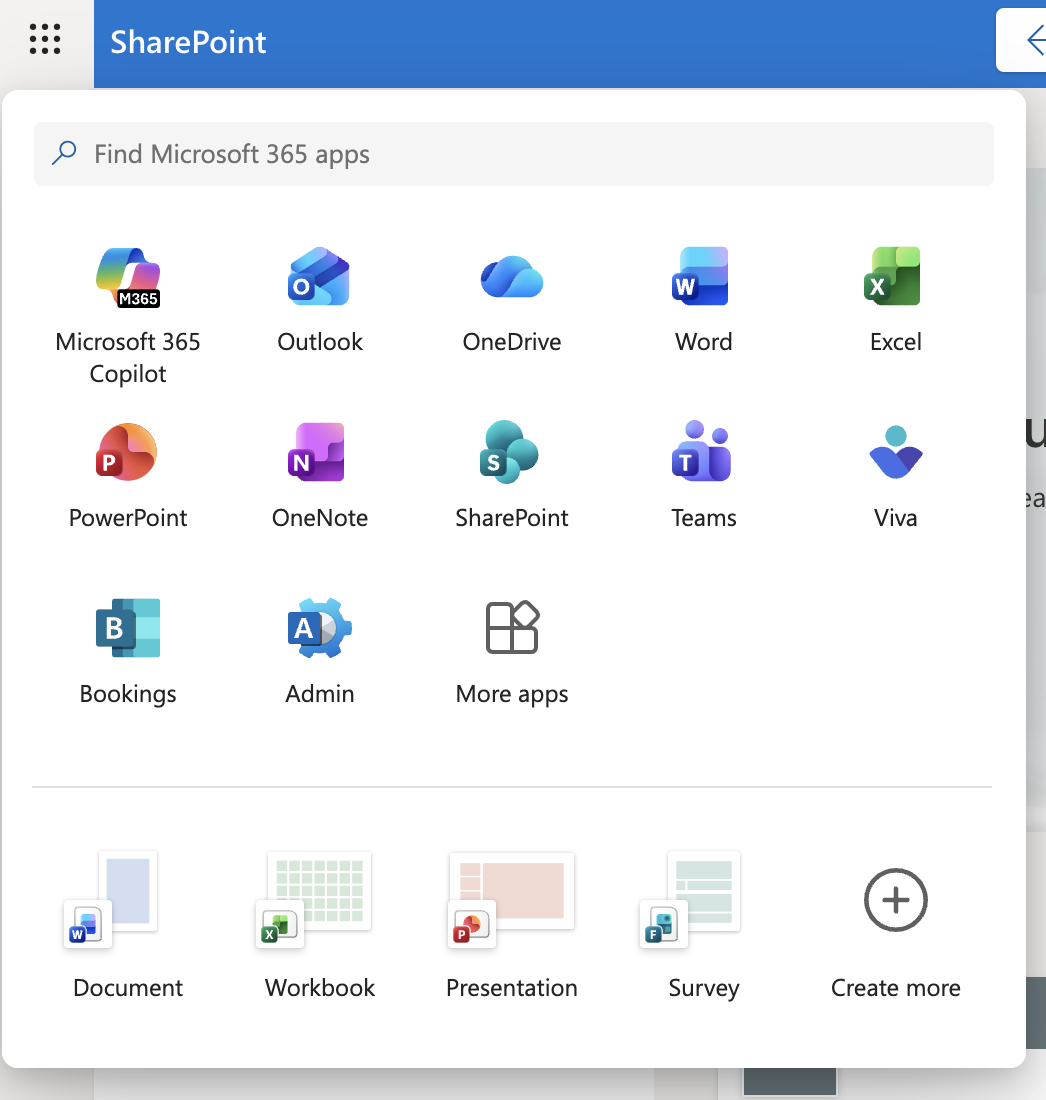
* From Microsoft 365: Click the app launcher (grid icon) in the top-left corner of any Microsoft 365 app → Click **Admin** → From the left sidebar, click **Show All** → Under "Admin centers", select **Identity**
Your Microsoft tenant administrator must configure consent in Microsoft Entra ID:
**Access Entra ID:**
* From Microsoft 365: Click the app launcher (grid icon) in the top-left corner of any Microsoft 365 app → Click **Admin** → From the left sidebar, click **Show All** → Under "Admin centers", select **Identity**
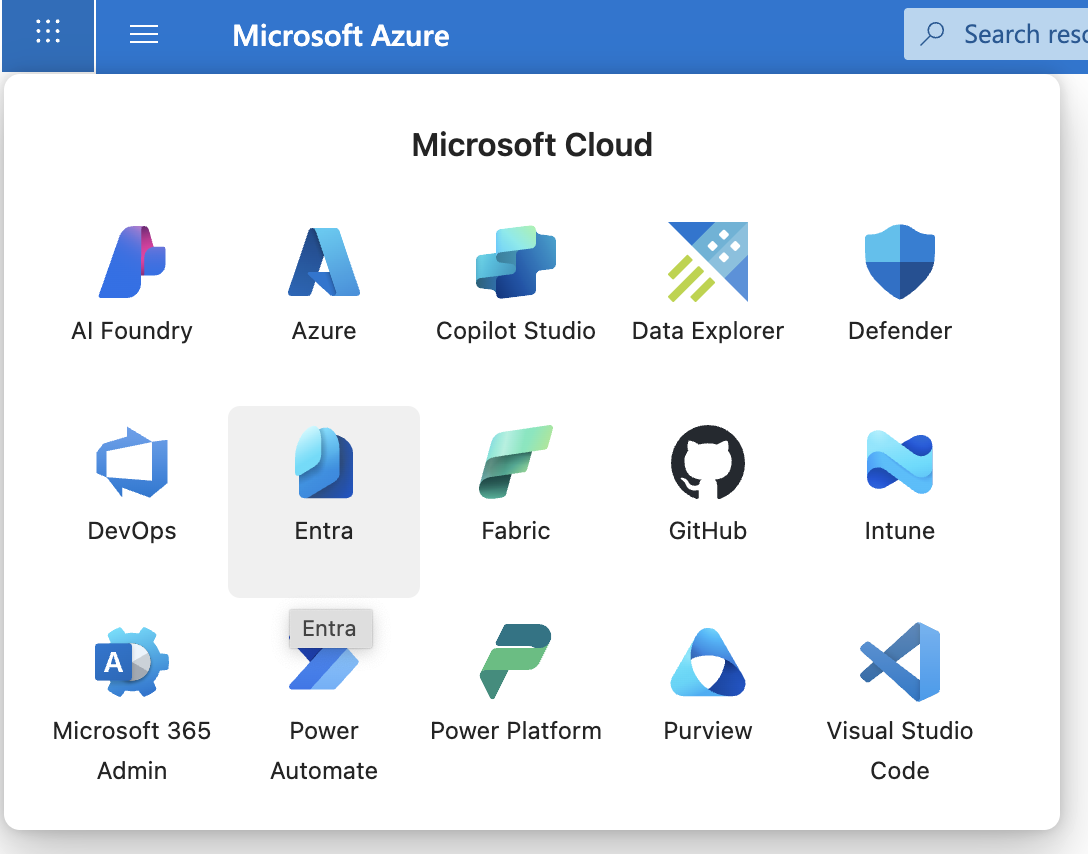
 * From Azure Portal: Click the app launcher (grid icon) in the top-left corner → Select **Entra** from the Microsoft Cloud services
 **Configure User Consent:**
1. In Entra ID, select **Enterprise apps** from the left sidebar
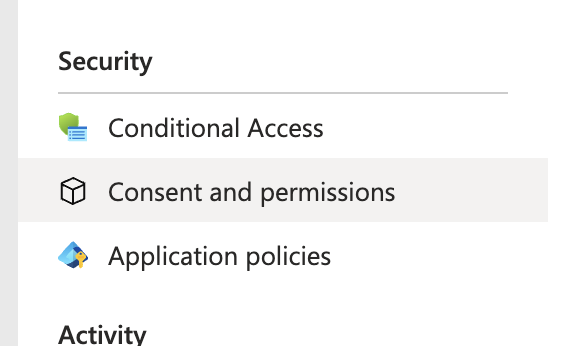
2. Under the "Security" section, click **Consent and permissions**
3. Click **User consent settings**
**Configure User Consent:**
1. In Entra ID, select **Enterprise apps** from the left sidebar
2. Under the "Security" section, click **Consent and permissions**
3. Click **User consent settings**
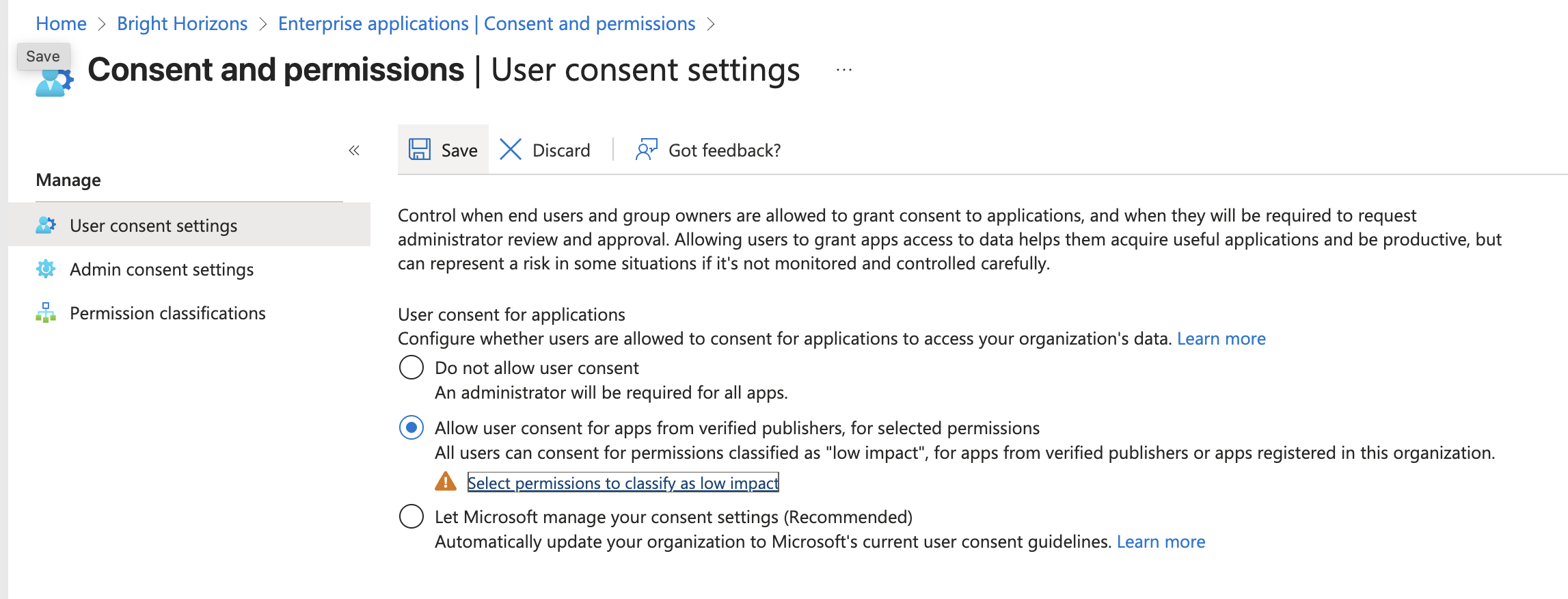 4. Select "Allow user consent for apps from verified publishers, for selected permissions" (This allows users to trigger authorization requests from Civic, since Civic is a verified publisher)
5. Click **Save** (Important: Save before proceeding to the next step)
6. Click "Select permissions to classify as low impact" (This whitelists the specific permissions users are allowed to consent to. If prompted to save, click **Save** before moving on)
7. On the permissions screen, click **Add permissions** → Select **Microsoft Graph**
4. Select "Allow user consent for apps from verified publishers, for selected permissions" (This allows users to trigger authorization requests from Civic, since Civic is a verified publisher)
5. Click **Save** (Important: Save before proceeding to the next step)
6. Click "Select permissions to classify as low impact" (This whitelists the specific permissions users are allowed to consent to. If prompted to save, click **Save** before moving on)
7. On the permissions screen, click **Add permissions** → Select **Microsoft Graph**
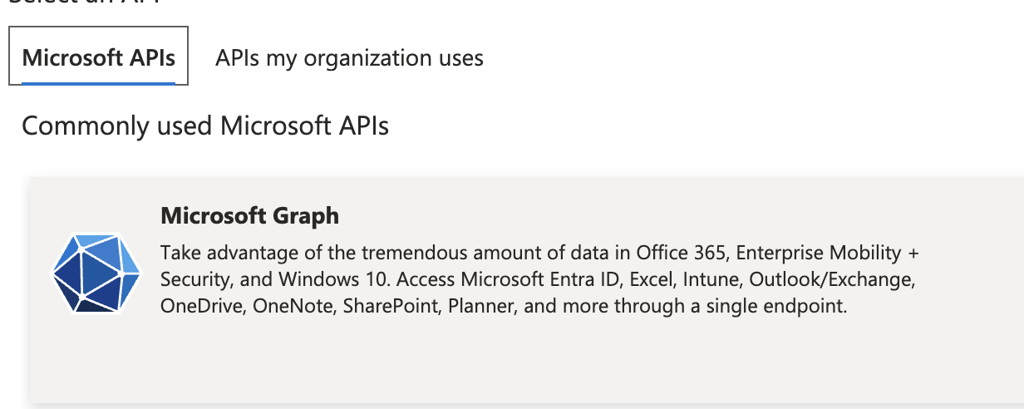 8. Select all **OpenId permissions** (required): `openid`, `profile`, `email`
9. Add the base permissions: `offline_access`, `User.Read`
10. Add SharePoint permissions based on your organization's needs:
* **Read-only access**: `Sites.Read.All`, `Files.Read.All`, `Lists.Read.All`
* **Read/Write access**: `Sites.ReadWrite.All`, `Files.ReadWrite.All`, `Lists.ReadWrite.All`
* **Advanced management** (optional): `Sites.Manage.All`, `Sites.FullControl.All`, `Group.ReadWrite.All`
11. Click **Add permissions** then **Save**
**Important:** Microsoft Entra ID changes can take up to **1 hour** to propagate across all services. After your administrator completes the configuration, wait at least an hour before retrying authorization in Civic. Attempting too early will result in permission errors.
You'll now see a standard OAuth consent screen showing "Permissions requested" by Civic. The app will request permissions such as:
* Maintain access to data you have given it access to
* Read items in all site collections
* View your basic profile
8. Select all **OpenId permissions** (required): `openid`, `profile`, `email`
9. Add the base permissions: `offline_access`, `User.Read`
10. Add SharePoint permissions based on your organization's needs:
* **Read-only access**: `Sites.Read.All`, `Files.Read.All`, `Lists.Read.All`
* **Read/Write access**: `Sites.ReadWrite.All`, `Files.ReadWrite.All`, `Lists.ReadWrite.All`
* **Advanced management** (optional): `Sites.Manage.All`, `Sites.FullControl.All`, `Group.ReadWrite.All`
11. Click **Add permissions** then **Save**
**Important:** Microsoft Entra ID changes can take up to **1 hour** to propagate across all services. After your administrator completes the configuration, wait at least an hour before retrying authorization in Civic. Attempting too early will result in permission errors.
You'll now see a standard OAuth consent screen showing "Permissions requested" by Civic. The app will request permissions such as:
* Maintain access to data you have given it access to
* Read items in all site collections
* View your basic profile
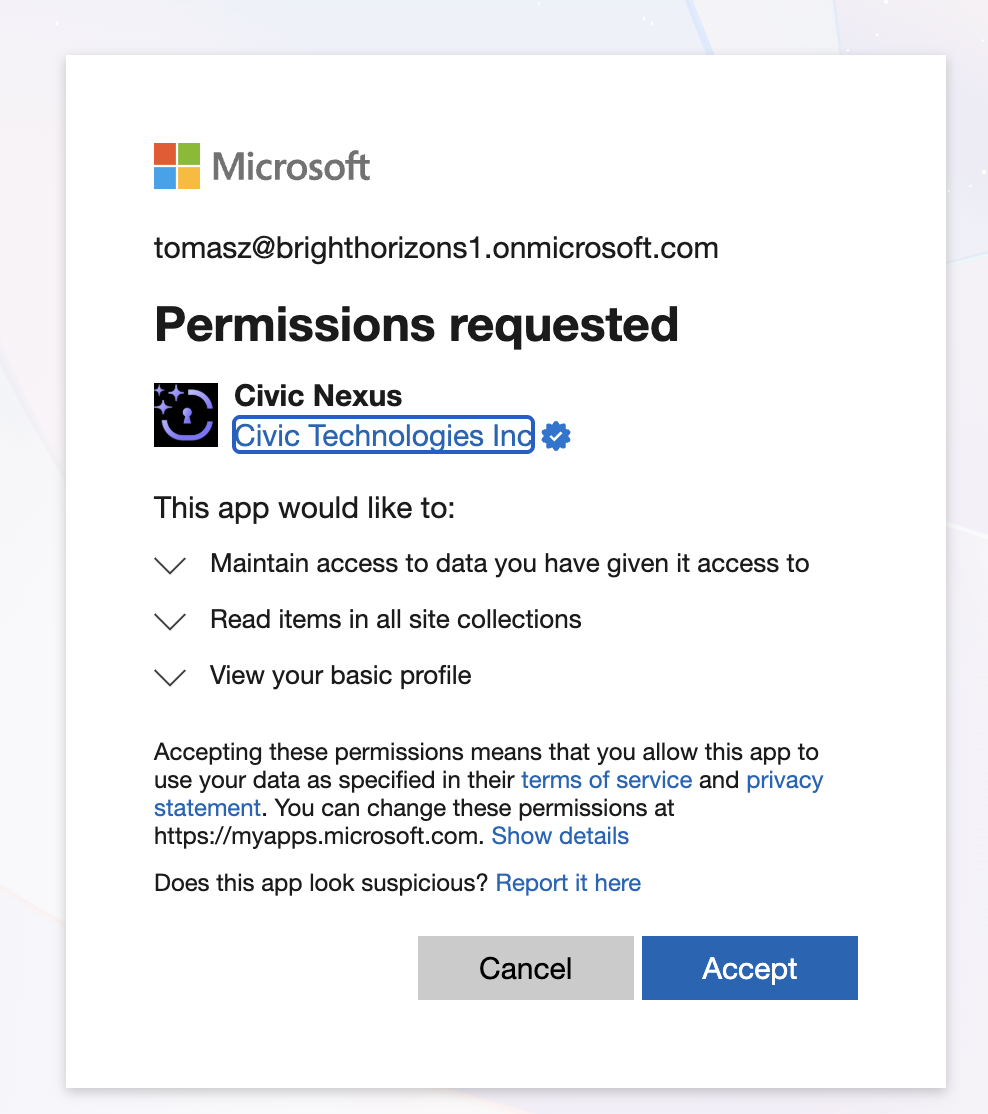 Click **Accept** to complete the authorization and start using the SharePoint integration.
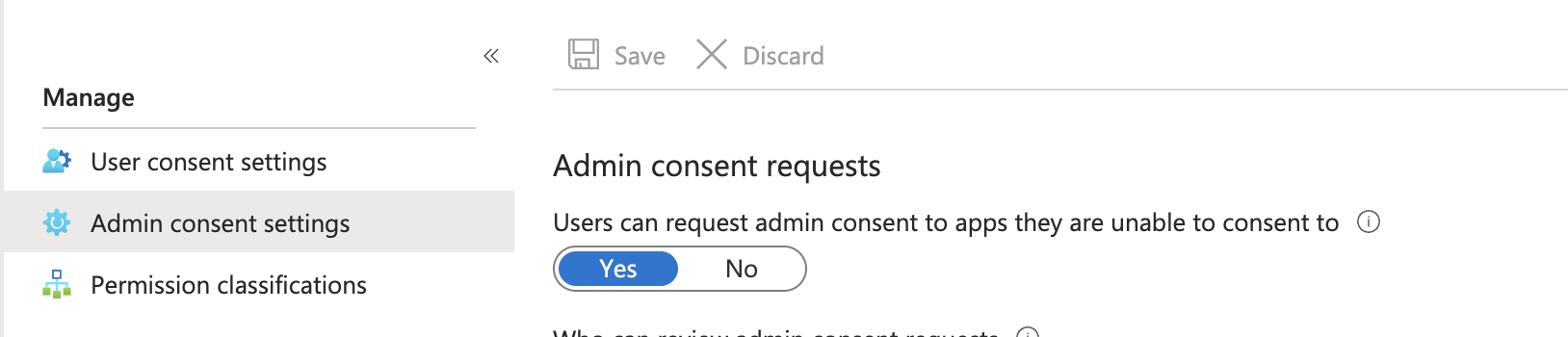
**Alternative Setup Method:** The steps above use a proactive approach where admins configure permissions up-front. Alternatively, administrators can enable "Admin consent requests" (found in **Admin consent settings** within Entra ID). This allows users to trigger approval requests directly when they attempt to authorize, and admins can approve on-demand rather than pre-configuring permissions.
Click **Accept** to complete the authorization and start using the SharePoint integration.
**Alternative Setup Method:** The steps above use a proactive approach where admins configure permissions up-front. Alternatively, administrators can enable "Admin consent requests" (found in **Admin consent settings** within Entra ID). This allows users to trigger approval requests directly when they attempt to authorize, and admins can approve on-demand rather than pre-configuring permissions.
 ## What You Can Do
Create and manage SharePoint sites for team collaboration
Upload, organize, and search documents across sites and libraries
Create and manage lists for project tracking and data organization
Create modern pages and news posts for team communication
## Available Tools (28)
### Site Management
List all SharePoint sites you have access to
Create new SharePoint sites for team collaboration
Get detailed information about a specific site
### Document Management
Upload files to SharePoint document libraries
Create folders to organize documents
Search for documents across sites and libraries
Download and retrieve document content
List files and folders in a library or folder
### Lists & Data
Create custom lists for tracking projects, tasks, or data
Add items to SharePoint lists
Retrieve items from lists with filtering
Update existing list items
### Content Publishing
Create modern pages for site content
Publish news posts for team announcements
List all pages in a site
## Use Cases
### Site Creation
"Create a new SharePoint site called 'Product Launch 2026'" - Set up collaboration spaces for teams.
### Document Organization
"In the Product Launch 2026 site, create folders for Marketing, Engineering, and Legal. Upload a project charter document to the Engineering folder. Then create subfolders Q1, Q2, Q3, Q4 under Marketing." - Organize project documents systematically.
### Content Search
"Search the site for all documents containing 'budget'. Then retrieve the content of the financial report and summarize the key metrics." - Find and analyze documents.
### Project Tracking
"Create a task tracking list with 3 sample projects including titles, budgets, managers, and due dates." - Set up project management structures.
### Team Communication
"Create a modern page called 'Team Resources Hub'. Then create a news post titled 'Q4 Results Announcement' with a summary of key achievements and upcoming initiatives." - Publish content for teams.
All Microsoft 365 apps (except Mail) require initial administrator approval before users can authorize them in Civic.
**Modern Pages:** Pages stay in draft status and must be published manually via the web interface.
**Office 365 Note:** Office 365 is the deprecated term for Microsoft 365. They refer to the same product platform.
## Troubleshooting
**Still seeing "Need admin approval" after administrator configured permissions?**
Wait the full hour for Microsoft Entra ID changes to propagate. If the issue persists after one hour, verify that:
* The administrator clicked **Save** after each configuration step
* All required permissions were added (OpenId, base permissions, and SharePoint-specific permissions)
* The "Allow user consent for apps from verified publishers" option was enabled
**Still seeing consent dialogs after successful authorization?**
This indicates missing permissions. Ask your administrator to review the permission list in Step 2 and ensure all required SharePoint permissions are whitelisted.
**"Access denied" errors when accessing sites?**
Verify your account has been granted access to the SharePoint sites you're trying to interact with. The MCP server respects your existing SharePoint permissions.
**Known Limitations:**
* **No deletion** - Cannot delete sites, libraries, lists, or pages
* **No permissions** - Cannot manage users, groups, sharing, or access control
* **No publishing** - Modern pages stay in draft (must publish manually)
* **No configuration** - Cannot modify site settings, themes, navigation, or version control
* **No comments/workflows** - Cannot access comments, recycle bin, or Power Automate integration
***
## Guardrails
This server supports all [14 universal guardrails](/civic/concepts/guardrails). Server-specific guardrails are coming soon.
## What You Can Do
Create and manage SharePoint sites for team collaboration
Upload, organize, and search documents across sites and libraries
Create and manage lists for project tracking and data organization
Create modern pages and news posts for team communication
## Available Tools (28)
### Site Management
List all SharePoint sites you have access to
Create new SharePoint sites for team collaboration
Get detailed information about a specific site
### Document Management
Upload files to SharePoint document libraries
Create folders to organize documents
Search for documents across sites and libraries
Download and retrieve document content
List files and folders in a library or folder
### Lists & Data
Create custom lists for tracking projects, tasks, or data
Add items to SharePoint lists
Retrieve items from lists with filtering
Update existing list items
### Content Publishing
Create modern pages for site content
Publish news posts for team announcements
List all pages in a site
## Use Cases
### Site Creation
"Create a new SharePoint site called 'Product Launch 2026'" - Set up collaboration spaces for teams.
### Document Organization
"In the Product Launch 2026 site, create folders for Marketing, Engineering, and Legal. Upload a project charter document to the Engineering folder. Then create subfolders Q1, Q2, Q3, Q4 under Marketing." - Organize project documents systematically.
### Content Search
"Search the site for all documents containing 'budget'. Then retrieve the content of the financial report and summarize the key metrics." - Find and analyze documents.
### Project Tracking
"Create a task tracking list with 3 sample projects including titles, budgets, managers, and due dates." - Set up project management structures.
### Team Communication
"Create a modern page called 'Team Resources Hub'. Then create a news post titled 'Q4 Results Announcement' with a summary of key achievements and upcoming initiatives." - Publish content for teams.
All Microsoft 365 apps (except Mail) require initial administrator approval before users can authorize them in Civic.
**Modern Pages:** Pages stay in draft status and must be published manually via the web interface.
**Office 365 Note:** Office 365 is the deprecated term for Microsoft 365. They refer to the same product platform.
## Troubleshooting
**Still seeing "Need admin approval" after administrator configured permissions?**
Wait the full hour for Microsoft Entra ID changes to propagate. If the issue persists after one hour, verify that:
* The administrator clicked **Save** after each configuration step
* All required permissions were added (OpenId, base permissions, and SharePoint-specific permissions)
* The "Allow user consent for apps from verified publishers" option was enabled
**Still seeing consent dialogs after successful authorization?**
This indicates missing permissions. Ask your administrator to review the permission list in Step 2 and ensure all required SharePoint permissions are whitelisted.
**"Access denied" errors when accessing sites?**
Verify your account has been granted access to the SharePoint sites you're trying to interact with. The MCP server respects your existing SharePoint permissions.
**Known Limitations:**
* **No deletion** - Cannot delete sites, libraries, lists, or pages
* **No permissions** - Cannot manage users, groups, sharing, or access control
* **No publishing** - Modern pages stay in draft (must publish manually)
* **No configuration** - Cannot modify site settings, themes, navigation, or version control
* **No comments/workflows** - Cannot access comments, recycle bin, or Power Automate integration
***
## Guardrails
This server supports all [14 universal guardrails](/civic/concepts/guardrails). Server-specific guardrails are coming soon.