
This guide covers Mistral LeChat setup. For other AI clients, see our client compatibility guide.
Prerequisites
Before you begin, make sure you have:Mistral LeChat
Access to Mistral LeChat at chat.mistral.ai
Civic Account
Create a free account on app.civic.com
Step 1: Copy the MCP URL
1
Visit app.civic.com
Open app.civic.com in your browser and sign in with your Civic account.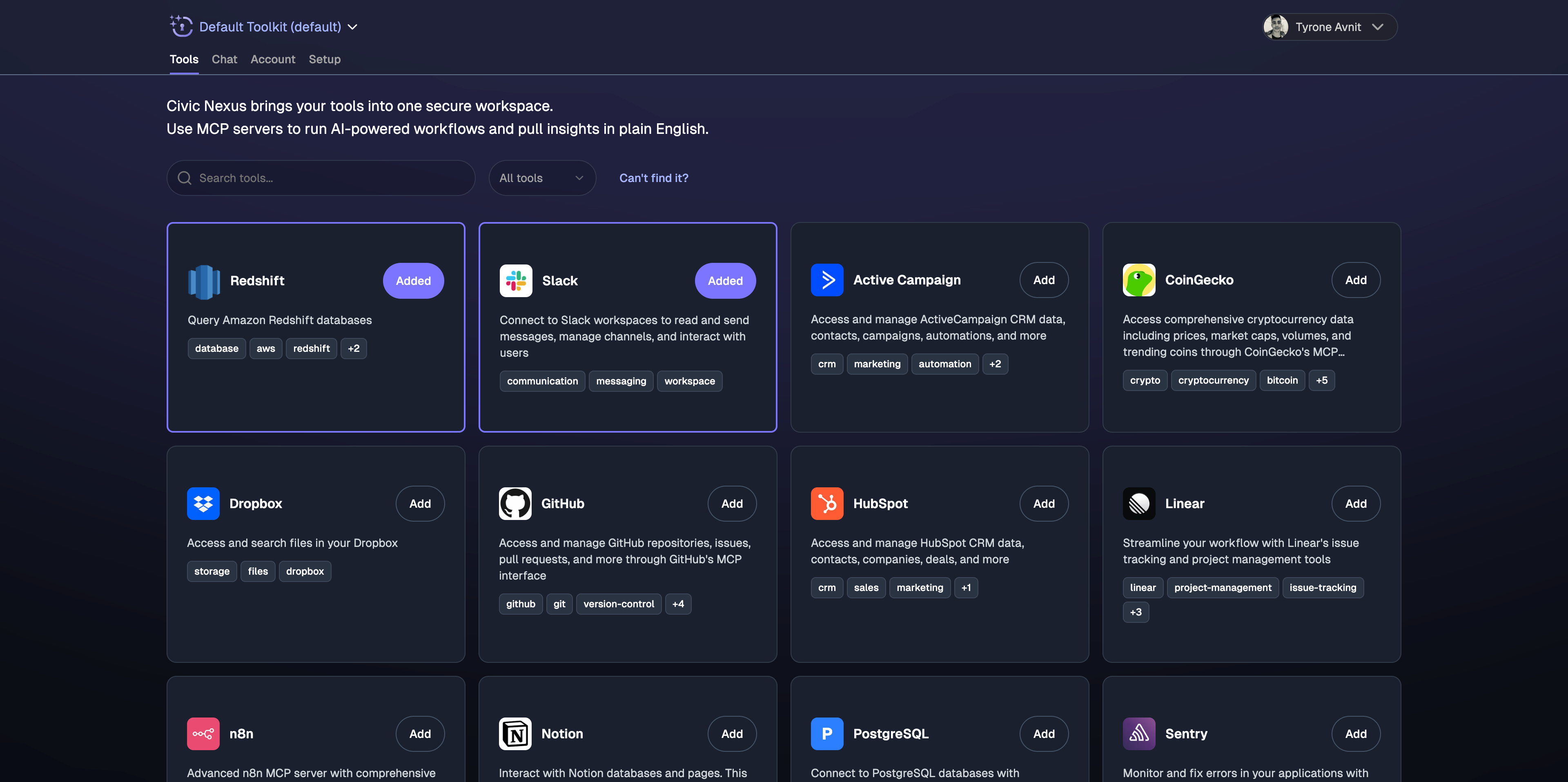
2
Browse available MCP servers
Explore the directory of available MCP servers. Each server connects to a different service or tool.
3
Select servers to connect
Click the checkbox next to each MCP server you want to use. You can select multiple servers.
4
Copy the MCP URL
After selecting servers, copy this URL:
Step 2: Add Connector to LeChat
1
Open LeChat Intelligence settings
In LeChat: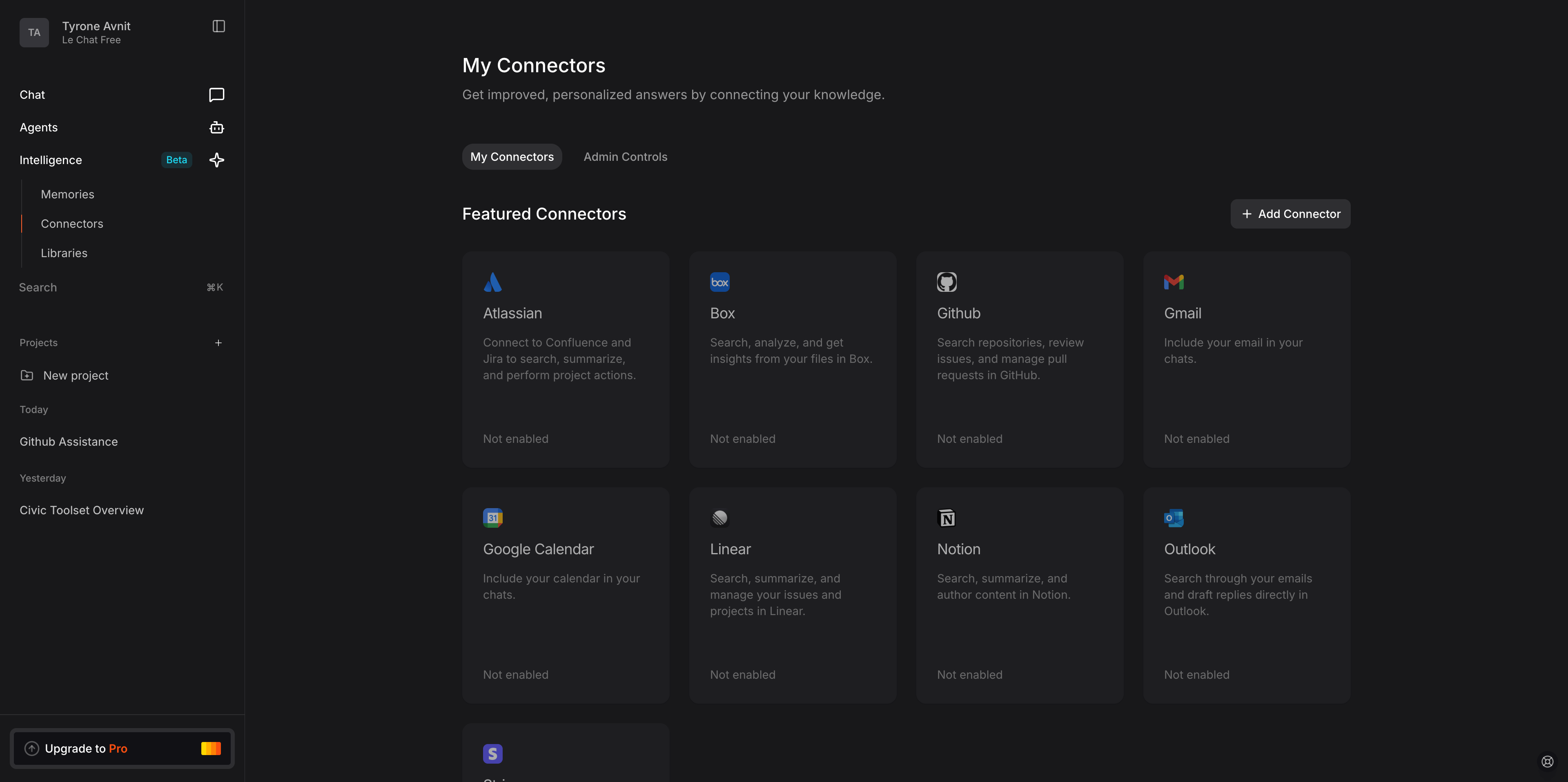
- Look at the left-hand sidebar
- Click on the “Intelligence” tab
- This will open the Intelligence settings panel
Navigate to LeChat Intelligence settings
2
Access Connectors section
- In the Intelligence panel, click on “Connectors”
- This will show your existing connectors and options to add new ones
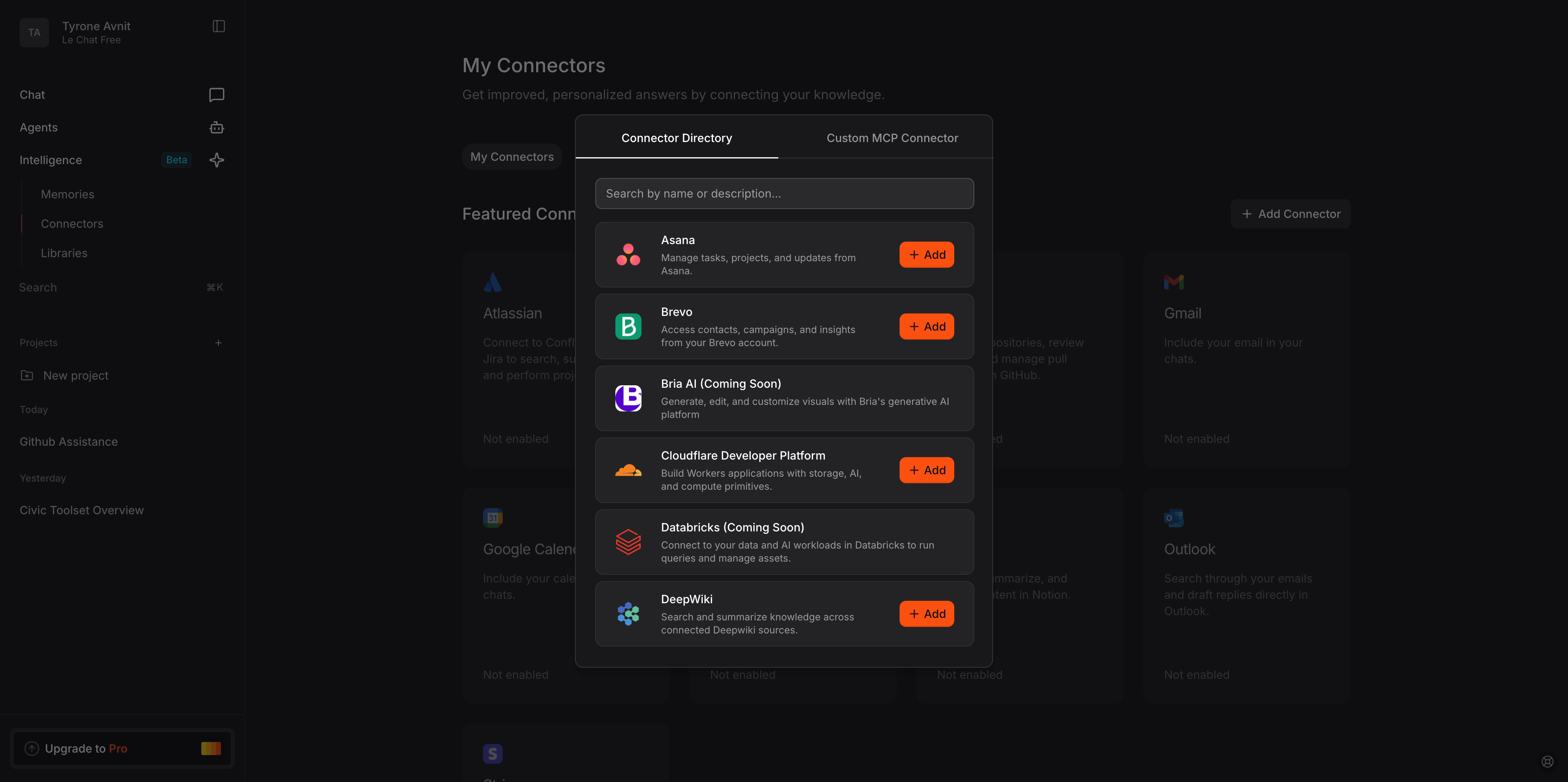
LeChat Connectors section
3
Add Custom MCP connector
- Click “Add Connector” button
- Select “Custom MCP” from the connector types
- Enter the following information:
- Name: “Civic”
- MCP URL:
https://app.civic.com/hub/mcp - Description (optional): “Access hundreds of tools via Civic”
- Click “Connect” to save the connector
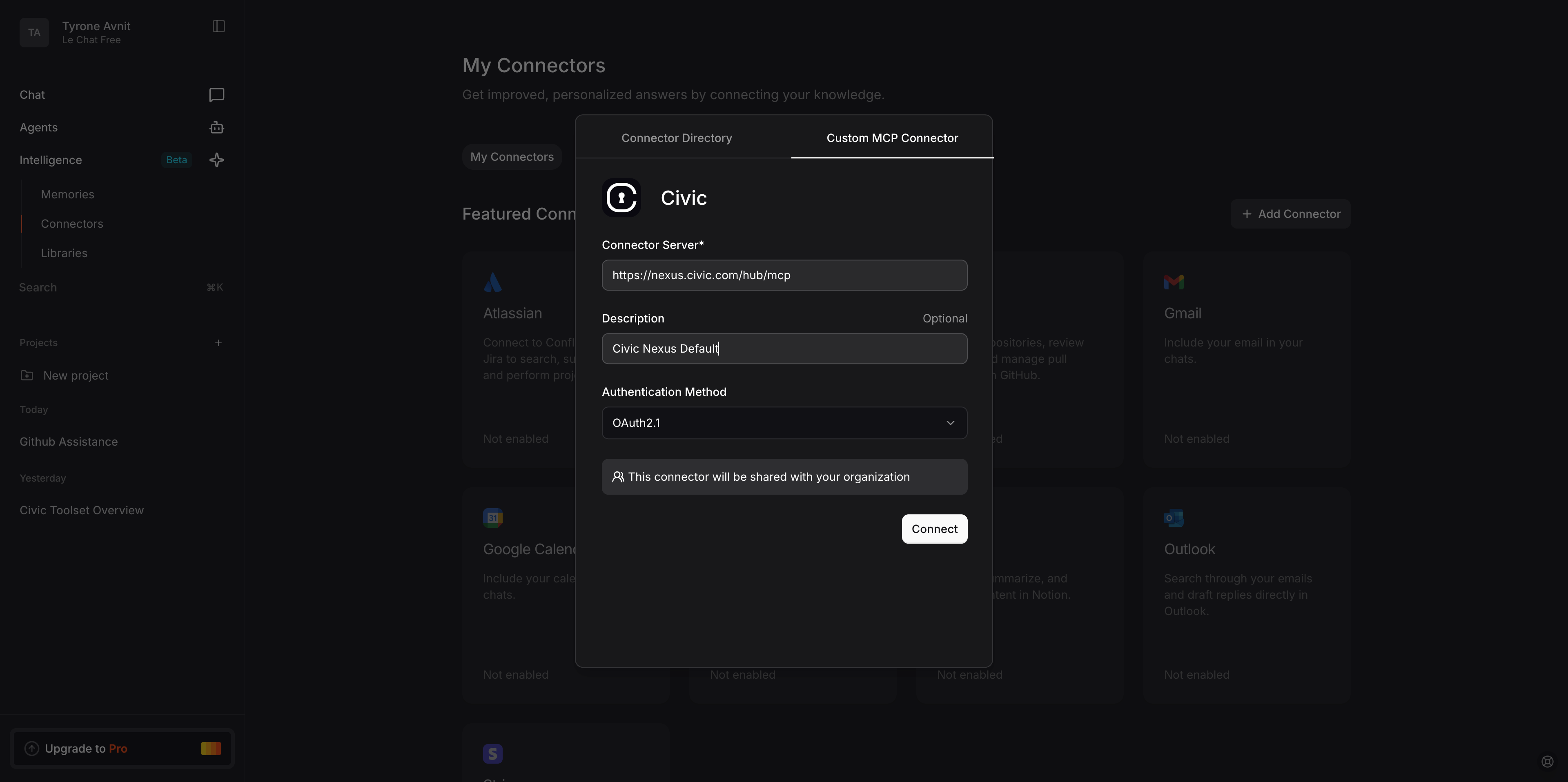
Add custom MCP connector in LeChat
Step 3: Authenticate and Test
1
Complete authentication
When you first use an MCP server that requires authentication: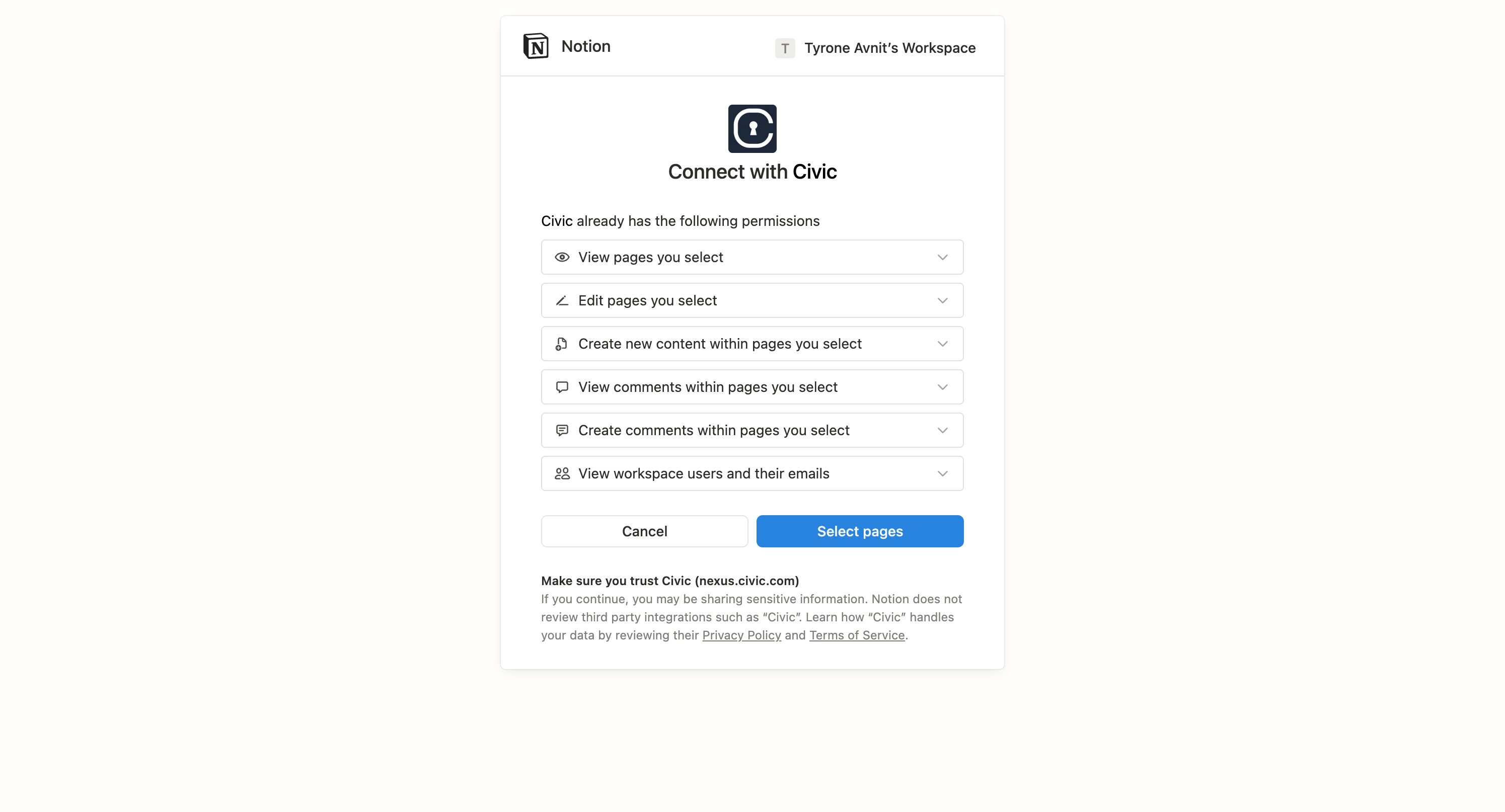
- LeChat will prompt you to connect to the service
- A browser window will open for OAuth authentication
- Sign in to the service and authorize access
- Return to LeChat when complete
OAuth authentication flow (example: GitHub)
Authentication is handled securely by Civic. Your credentials are never exposed to LeChat or stored locally.
2
Test your connection
Try these simple commands to verify everything is working:Or test a specific service: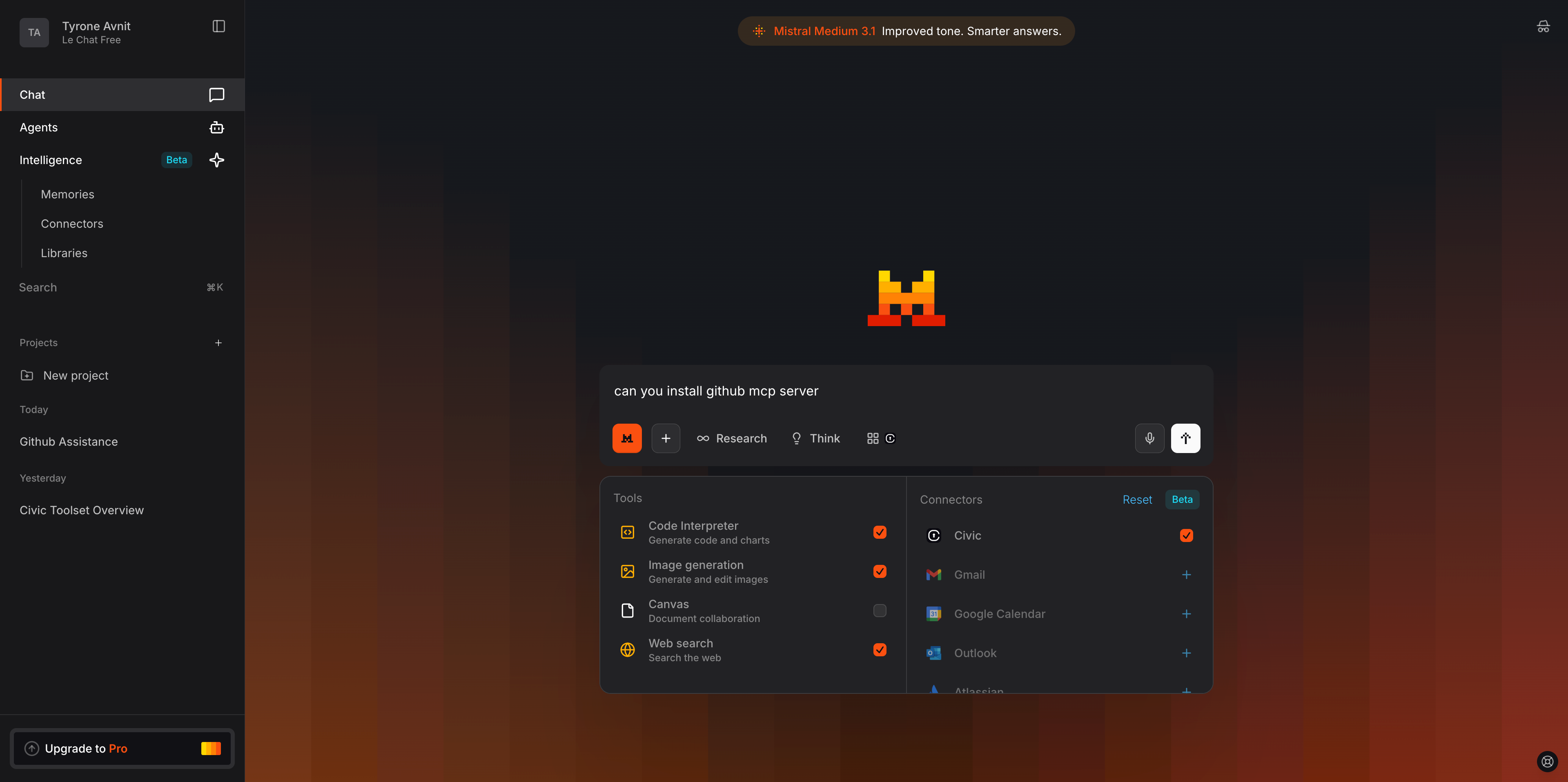
LeChat successfully using connected tools
Managing Your MCP Connectors
Adding More Tools
You can add new tools directly in your LeChat conversation:Viewing Connected Tools
To see your currently connected tools:- Go to Intelligence → Connectors in the left sidebar
- View the list of active connectors
- You can see connection status and last used time for each
Removing Tools
You can disconnect from specific tools:1
Access connector settings
Go to Intelligence → Connectors in LeChat’s left sidebar
2
Remove connector
- Find “Civic” or the specific tool in your connectors list
- Click the three dots or settings icon next to the connector
- Select “Remove” or “Disconnect”
- Confirm the removal when prompted
3
Clean up authorizations (optional)
Visit app.civic.com to revoke service authorizations if you no longer want Civic to have access
Reset Connection
If your connector isn’t working properly:1
Complete reset
- Remove the Civic connector completely
- Refresh the LeChat page
- Follow the setup steps above to re-add with a fresh MCP URL from app.civic.com
Common Questions
Is MCP support available on all LeChat plans?
Is MCP support available on all LeChat plans?
Check your LeChat plan features. MCP connector support may vary by subscription tier. Visit chat.mistral.ai for plan details.
What if authentication fails?
What if authentication fails?
If you encounter authentication issues:
- Make sure you’re logged into the correct account for the service
- Check if your account email matches between app.civic.com and the service
- Try removing and re-adding the MCP connector with a fresh URL
- Check our troubleshooting guide for more solutions
Can I use different email addresses?
Can I use different email addresses?
If your app.civic.com account uses a different email than your connected services (e.g., work@company.com vs personal@gmail.com), make sure you authenticate with the correct account for each service during the OAuth flow.
My connector shows as disconnected
My connector shows as disconnected
Try these steps:
- Refresh the LeChat page
- Remove the connector completely and re-add with a fresh MCP URL
- Check that your browser allows pop-ups for authentication
- Clear browser cache and cookies for chat.mistral.ai
Two-Minute Verification
Once connected, test these prompts to make sure everything works:- If you selected GitHub
- If you selected Slack
- If you selected Dropbox
Need Help?
Troubleshooting Guide
Solutions for common LeChat connection issues
Next Steps
Now that you’re connected, explore what you can do:Browse More Servers
Add more MCP servers to expand LeChat’s capabilities
Security Details
Learn how Civic keeps your data secure
Client Compatibility
See setup guides for other AI clients
Get Support
Contact us if you need help